Rigging Info Part 1 | Rig Structure & FBX Export
Rigging Info Part 1 — Rig Structure & FBX Export
📺 Tutorial Video: Rigging Info Part 1 | Rig Structure & FBX Export Setup
A shared rigging data storage node used by both Fast-Ref and BipedPlus
1.1 What is the Rigging Info Node?
Rigging Info is a rigging metadata storage feature shared by both Fast-Ref and BipedPlus.
It saves controller names, skinned meshes, bone info, selection sets, and more into a dedicated scene node (__INFO__REFERENCE).
How to Access
| Tool | Access Path |
|---|---|
| Fast-Ref | [Tools Menu] → [Create] → [Rig Data Manager] |
| BipedPlus | Edit Window → Rigging Info Section |
Shared Node: Both tools store data in the same __INFO__REFERENCE node.
1.2 Rig Data Manager — Key Features
Pre-saves Fast-Ref analysis data inside the rigging file.
| Feature | Description |
|---|---|
| Selection Set Save | Saved inside the rig file and auto-restored on load (workaround for 3ds Max bug) |
| Speed Improvement | Add / Replace operations approximately 2× faster |
| Restore Stability | Reliable data restoration without external JSON files |
| Rig Check | Automatically checks for duplicate node names & animation key presence before saving |
| Export Selection Set | Extract FBX based on a specified Selection Set instead of the Auto mode |
1.3 Registering the Controller List
Register the controllers that Fast-Ref should recognize when swapping or restoring animations.
What to Register
| Target | Include? |
|---|---|
| Biped nodes | ❌ Managed separately (auto-recognized) |
| General controllers (animator-controlled) | ✅ Required |
| Simulation bones | ✅ Recommended |
| Morpher data | ✅ If animation keys are present |
| Morphers connected to Facial UI | ❌ Not required |
| Shape controllers | ✅ As needed |
Using Wildcards
Add all controllers sharing a prefix at once.
Example: Ctrl_* → selects all controllers starting with "Ctrl_"Tip: For minor characters or quick workflows, you can add bones directly to the list without a full controller setup.
1.4 Saved Data Items
Data saved when [Rig Structure] is checked → [Refresh Save] is executed:
| Item | Description |
|---|---|
| Biped Name | Biped identifier in the scene |
| Biped Node Names | List of Biped component nodes |
| Controller Names | Registered general controller list |
| Skinned Mesh Info | List of skin-bound meshes |
| Bone Info | List of influence bones |
| Selection Set | All selection sets in the scene |
With saved data, Fast-Ref automatically recognizes the rig structure from the scene file — no manual inspection needed on load.
1.5 Selection Set — Save & Restore
3ds Max has a bug where selection sets are not automatically restored when loading a scene as a reference.
Rigging Info provides a workaround for this issue.
How to Save
- Select the desired node group in the scene.
- Save as a selection set. (e.g.,
SkinBones,Skins) - Update and save the Rigging Info data.
- The selection set data is stored inside the
__INFO__REFERENCEnode.
Restore Result
When loaded via Fast-Ref, the R tag appears and both the rig structure and selection sets are automatically restored.
1.6 FBX Export Settings
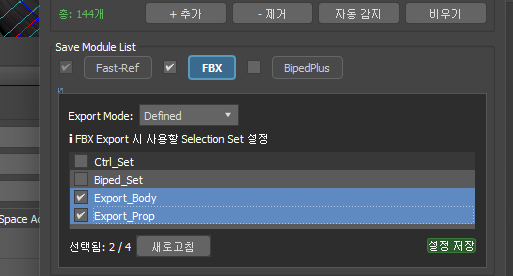
Fast-Ref extracts FBX based on Rigging Info selection sets — no separate export tool needed.
Auto Mode
Automatically collects all influences registered on skinned meshes as the export basis.
- Any bone added to the controller list will be included in the export even without skin data or influence assignments.
Defined Mode (Export Selection Set)
Directly specify which selection sets to export. Use this when you want to selectively extract specific configurations instead of the Auto mode.
Example: Separate Character Body + Weapon Export
- Save the character mesh group as a selection set. (e.g.,
ExportBody) - Save the weapon group as a separate selection set. (e.g.,
ExportProps) - Switch to Defined mode after updating Rigging Info.
- On export in Fast-Ref, each checked selection set is extracted separately.
| Checked Count | Result |
|---|---|
| 1 selected | Only that file is extracted |
| 2 selected simultaneously | Both files extracted at once |
Note: Defined mode settings also apply during Batch Tool operations.
1.7 Note on BipedPlus
Fast-Ref only users: You do not need to check BipedPlus-related options when saving a rig file.
BipedPlus activates additional features when using its dedicated plugin, including saving controller Mirror Data into the Rigging Info node.
For detailed BipedPlus usage, refer to the separate 'BipedPlus Guide'.
1.8 __INFO__REFERENCE Node
- Automatically created in the scene after saving rigging data.
- Automatically placed under the top group — no manual organization needed.
- A dedicated layer is also created automatically.
1.9 Fast-Ref Tag Guide
Status tags are displayed on each item when loading references in Fast-Ref.
R — Read Mode (Normal)
- Displayed when a rig file containing a Rigging Info node is loaded as a reference.
- Indicates that rigging data has been successfully loaded.
- Selection Sets are also automatically restored at this point.
ES — Export Selection (FBX Export Specified)
- Displayed when a rig file with an Export Selection Set is loaded.
- FBX is extracted based on the specified selection set, not the entire scene.
- The same setting applies during Batch Tool operations.
D — Duplicate (Yellow Warning)
- Displayed when nodes with identical names exist in the loaded character data.
- Fast-Ref matches data by name.
- Duplicate names can cause tool malfunctions — fix all names to be unique before starting work.
N — Nested (Red Warning)
- Displayed when the loaded reference file contains another reference inside it (nested structure).
- Fast-Ref officially supports only 1-level (Direct Reference) depth.
- While it may function in nested states, unexpected bugs or data loss can occur.
⚠️ Avoid using nested reference structures where the N tag appears.