SkinLayerStudio
Ep.12 — Mirror and L/R Names
Download Markdown Download with ImagesPaint one side only, then copy weights and masks to the other side with Mirror. If mirroring doesn't work, start by checking the L and R pattern in the bone names.
1. Basic Mirror
- Paint one side, then click Mirror.
- Weight goes to the other side.
- Mask is handled separately, so Mirror the Mask too.
2. Matching L/R Names
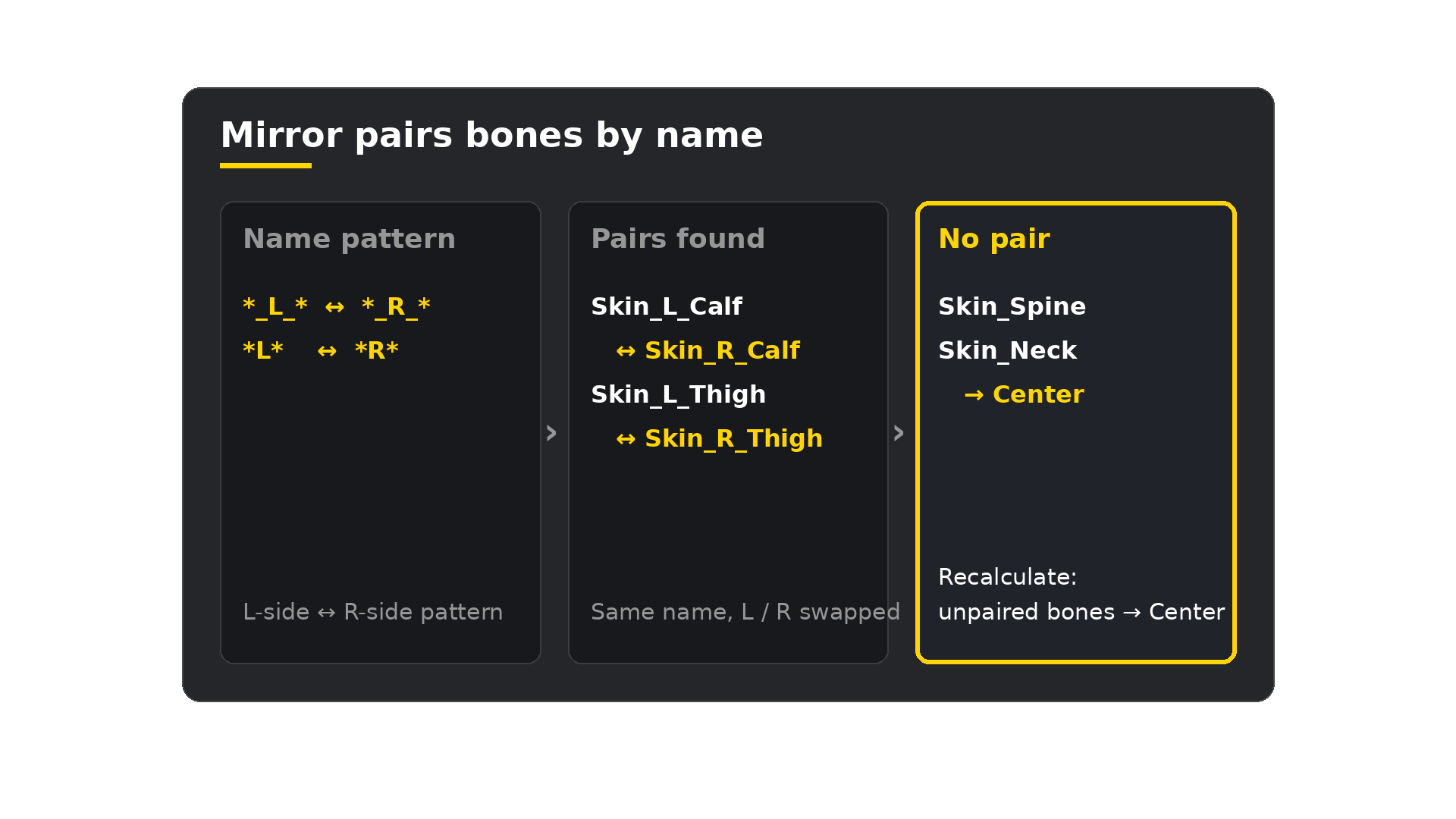
Mirror finds left and right by bone name.
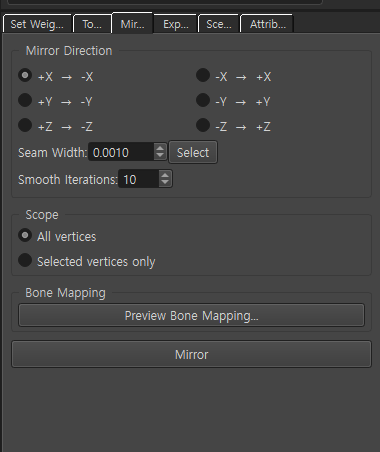
- Enter the pattern used for L and R in the names. Check the pairs with Preview Bone Mapping on the Mirror tab.
- When recalculated, bones with no pair go to Center.
- You can save frequently used naming rules as presets and load them again.
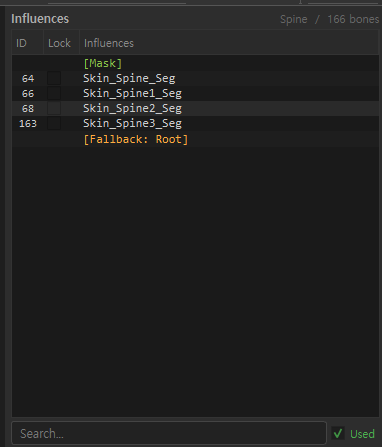
- Turn on Used to show only bones that have weights, which makes checking easier. Used in Influences likewise shows only bones with weights in the current layer.
3. The Center: Direction and Seam Width
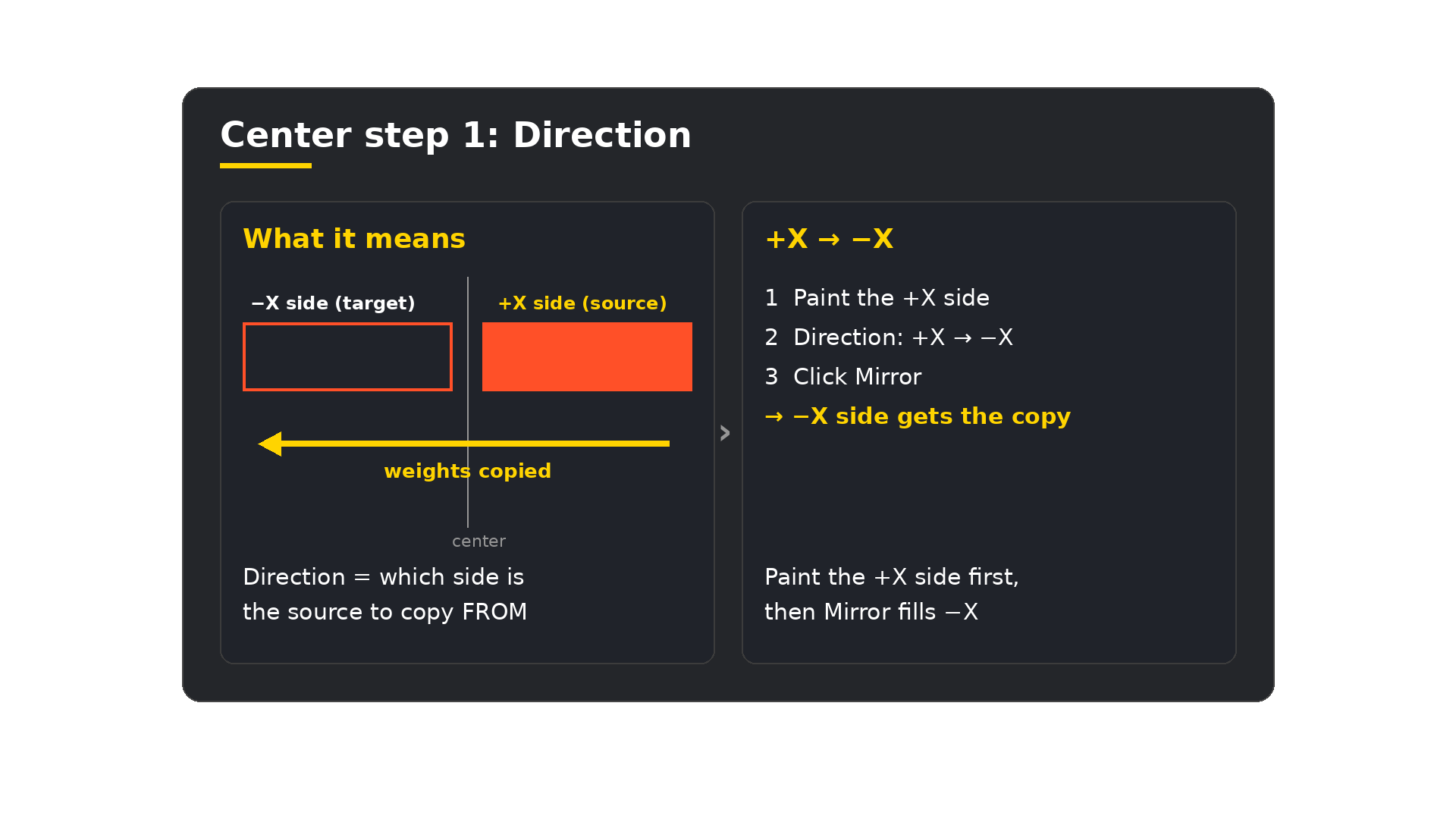
The center is defined by two things: direction and Seam Width.
- Direction sets which side is the source to copy from. Besides +X → -X, there are also Y and Z directions.
- With +X to -X, paint the +X side and Mirror copies it to the -X side.
- Seam Width is the width treated as the center. Vertices within this width are not copied left/right but treated as center. Select selects the vertices within that width.
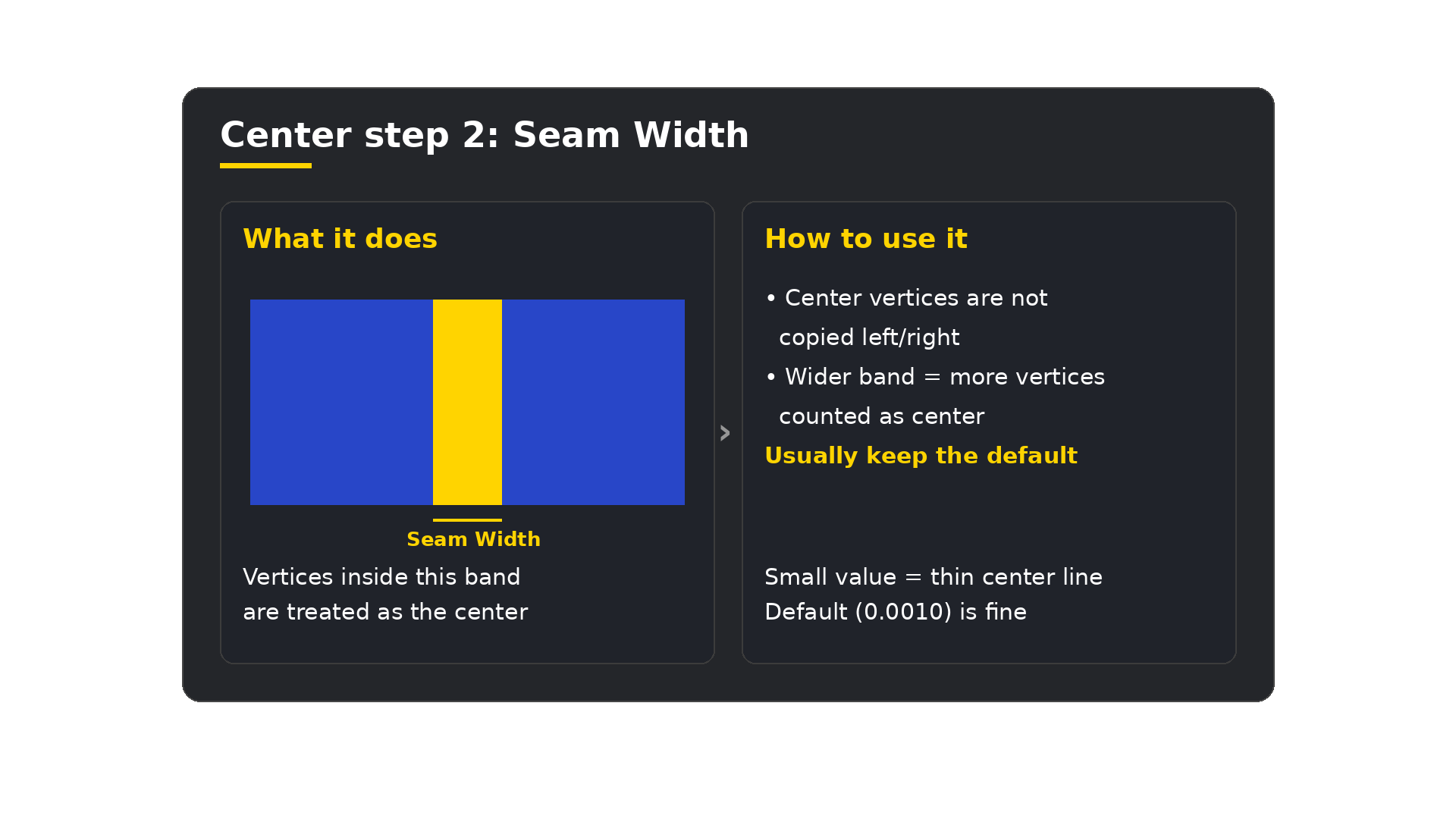
- Usually you can leave the defaults. If Smooth Iterations is 0, the center is not blended smoothly.
- With Scope set to All vertices, the whole layer is mirrored. With Selected vertices only, only the selected vertices are sent to the other side.
4. Skirt Example
A skirt needs left and right weights to blend smoothly at the center.
- Select the center with some margin and Mirror.
- Select a bone and you can see it connects with the other side at the center.
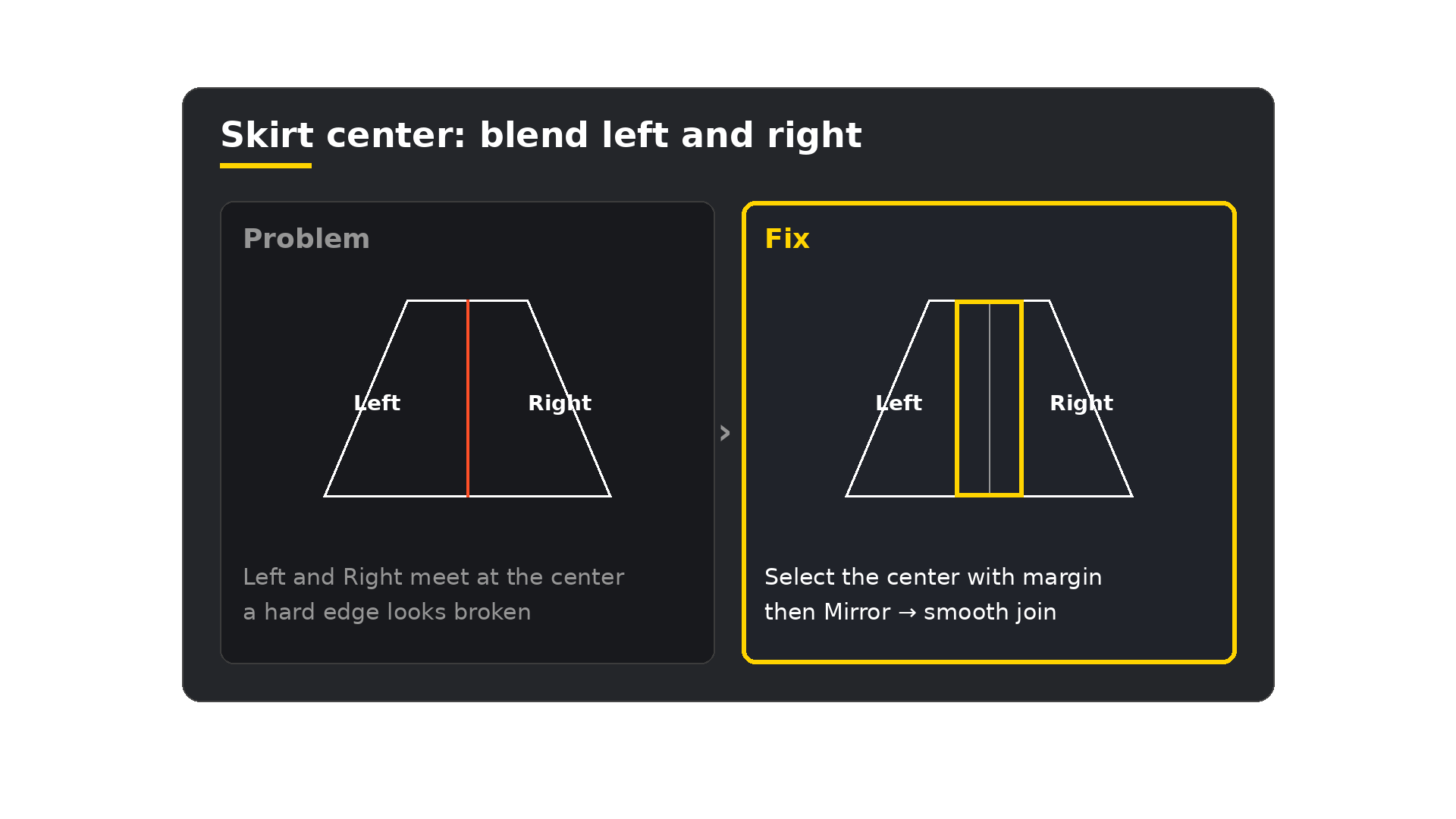
Where the front and back meet at the center, use the same method: select the center with some margin, Mirror, then blend with Smooth.
5. Layer-Level Mirror
The Mirror tab sends the current layer's weights or mask to the other side. To duplicate a whole layer, use right-click Mirror Layer.
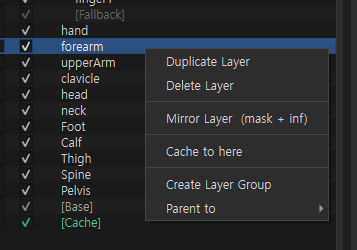
- Right-click a layer and choose Mirror Layer (mask + inf).
- That layer's mask and weights are created together on the other side.
- You can mirror the masks and influences of many layers at once, without repeating it per layer.
- To fix only a specific layer, use Mirror Layer.
6. Checking Which Bone Is Used
- Click Select Bone and move the bone directly.
- Playing the animation resets the pose.
Previous: Ep.11 — Layer Group
Next: Ep.13 — Normalize and Prune