biped-initial-setup
Download Markdown Download with ImagesWhen you first start rigging in 3ds Max, Biped is the first thing you encounter — but using the default settings as-is can cause serious problems at the engine stage. Please check the following settings to ensure a stable pipeline.
1. Fixing Logical Errors in the Hierarchy
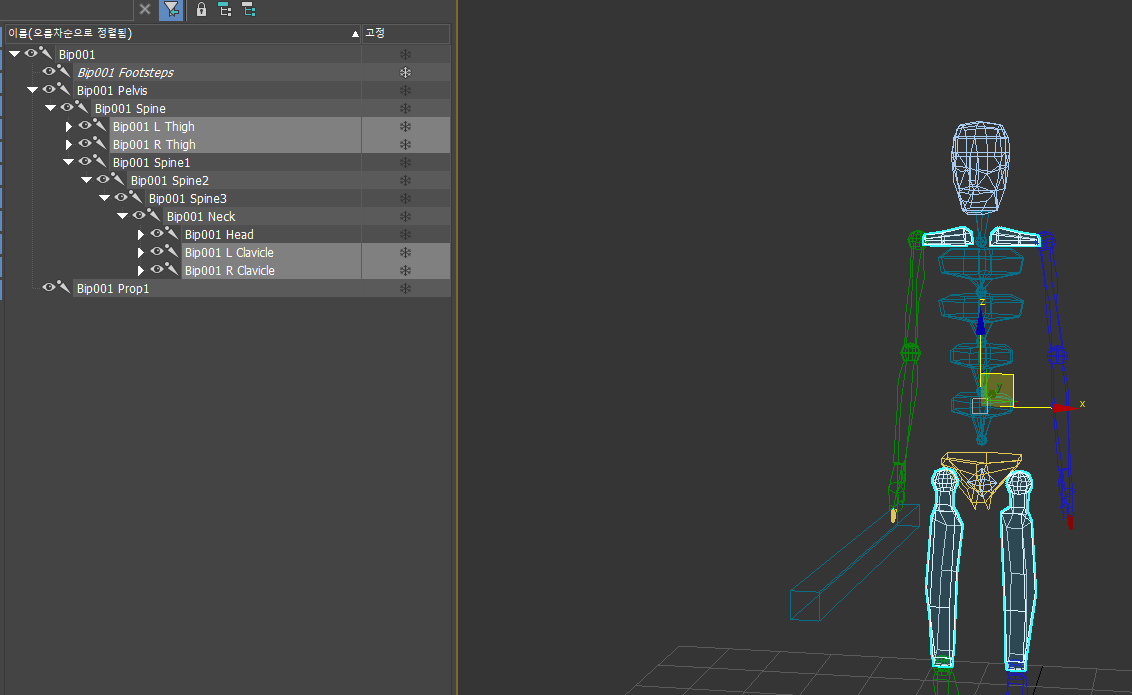
Biped's initial joint structure was designed for older skinning workflows, which makes it somewhat illogical in modern engine environments.
- Problem: In the default settings,
Thighends up parented underSpine, andClavicleends up parented underNeck. - Issues that arise: When adding animation correction features in the engine — such as head rotation or spine correction — moving the spine also causes the legs to follow, creating extremely complex structural conflicts.
✅ Required Settings (Figure Mode)
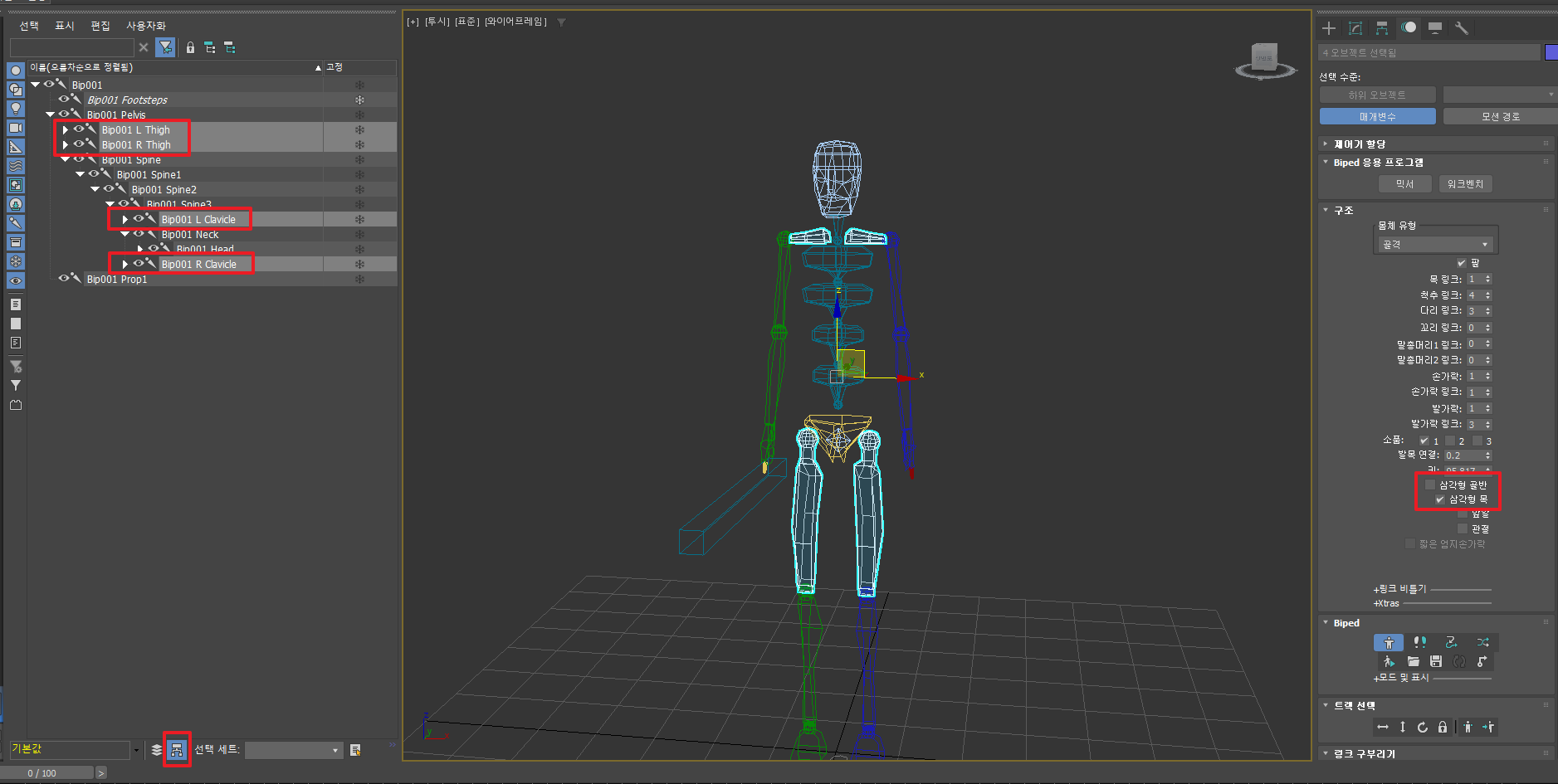
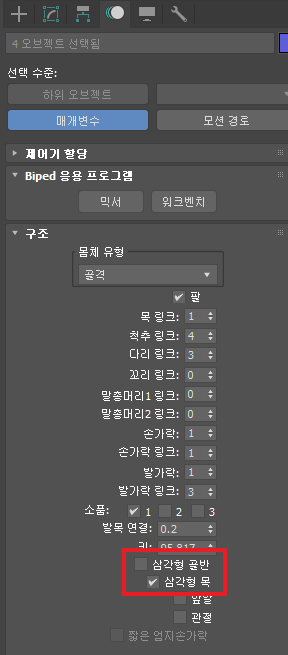
Before your rigging setup, be sure to configure the following two settings in Figure Mode:
- Triangle Pelvis: Must be checked (correctly parents the leg hierarchy to the pelvis.)
- Triangle Neck: Must be unchecked (logically separates the hierarchy of the clavicle and neck.)
2. Changing the Mode for Accurate Pivot Inspection
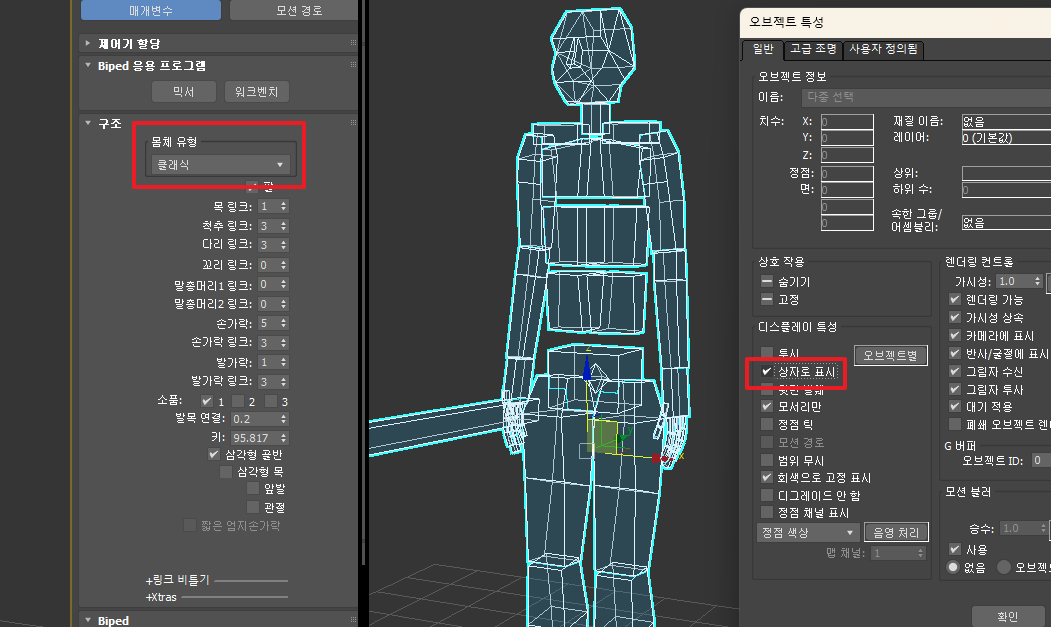
Accurately identifying the center point of each bone is critical for precise rigging.
- Change Body Type to [Classic]: This mode provides the most accurate visual confirmation of pivot positions when switching Biped to Box form.
- Activate Box Mode: Selecting the entire Biped and enabling Box Mode significantly improves workflow efficiency.
3. Production-Standard Link Settings (Recommended)
These may vary by project, but the following values are generally the most stable. Use them as a reference during your setup work.
| Item | Recommended Value | Notes |
|---|---|---|
| Spine Links | 3 | Produces the most natural spinal curvature. |
| Fingers | 5 | Standard for humanoid characters |
| Finger Links | 3 | Matches actual finger joint structure |
| Porp | 1 | Prop bone for Biped |
Completing the settings described above will save the TA and engine teams from unnecessary hardship when doing animation post-correction work in the engine later on.
@@