3ds Max → Unity FBX Export Complete Guide
Download Markdown Download with ImagesThe standard procedure for correctly importing a rigged and skinned character from 3ds Max into Unity.
Understanding why each step is needed allows you to handle any scene variation on your own.
0. Success Criteria — This Is All You Need to See
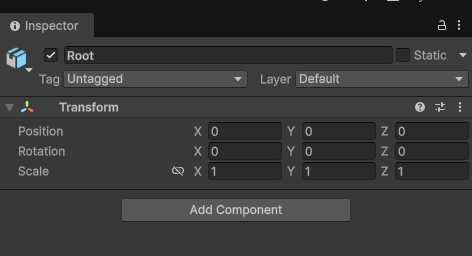
After dragging the FBX into Unity and selecting the Root (top-level object), the Transform in the Inspector must look like this:
| Field | Value |
|---|---|
| Position | 0, 0, 0 |
| Rotation | 0, 0, 0 |
| Scale | 1, 1, 1 |
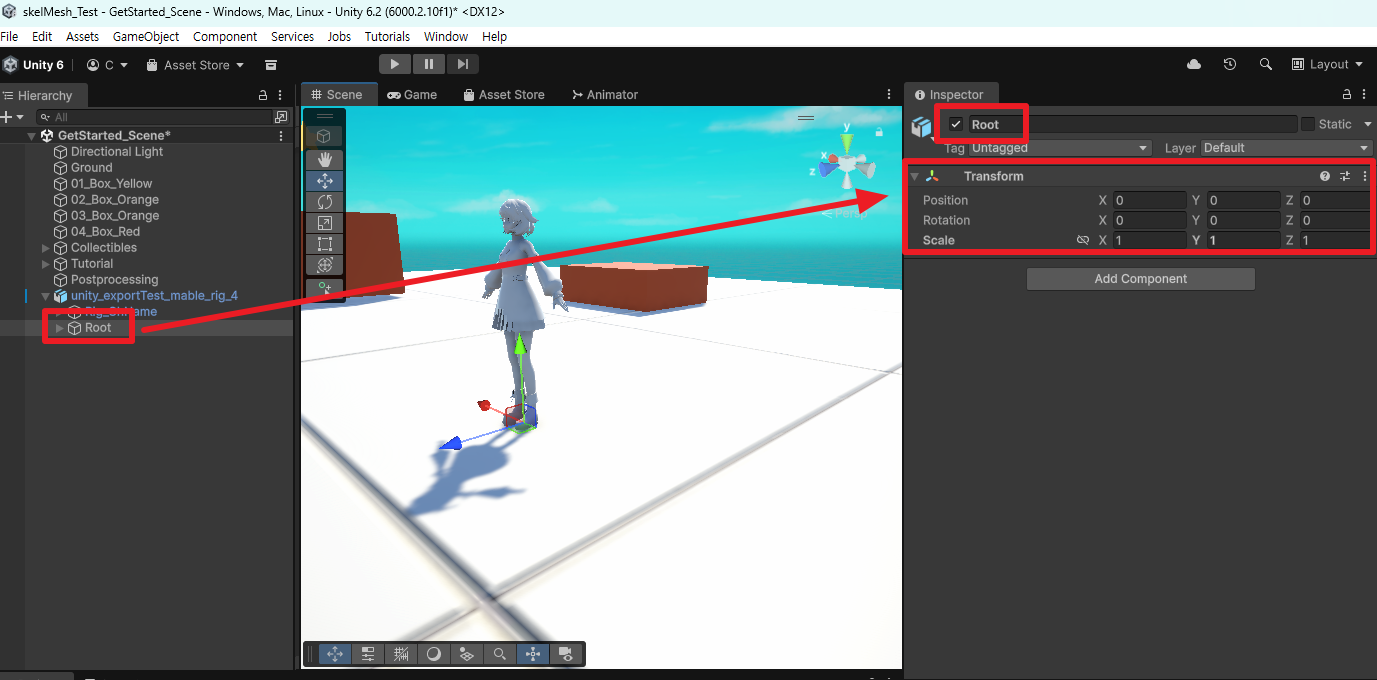
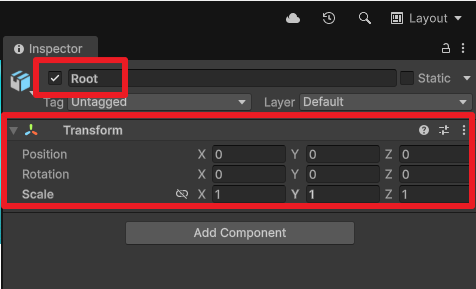
Why do these values matter?
A clean Root of 0 / 0 / 1 ensures that Prefab instantiation, animation retargeting, and physics/collider calculations all behave predictably.
If Scale comes in as 0.01 or Rotation as -90, that error accumulates across every child bone, mesh, and animation clip — making it extremely hard to trace later. Catching problems at import time is always cheaper.
1. Why Do Coordinates and Units Mismatch? (Essential Background)
3ds Max and Unity use different coordinate systems and default units. The FBX file acts as a translation bridge between them — if the export options are wrong, the translation breaks and the values above get corrupted.
| 3ds Max | Unity | |
|---|---|---|
| Up Axis | Z-up (Z is sky) | Y-up (Y is sky) |
| Handedness | Right-handed | Left-handed |
| Internal Length Unit | Free (cm recommended) | 1 unit = 1 meter, fixed |
Two things are critical:
- Axis: Max's Z-up must be converted to Unity's Y-up, or the character will fall on its side.
- Units: Unity treats "1 = 1 meter" as absolute. Working in cm means 1 cm = 0.01 m, so the FBX must correctly absorb that 100× difference for Scale to land at
1. If it doesn't,0.01stays.
Every step in this guide ultimately exists to ensure "Y-up axis, cm-based units."
2. STEP 1 — Verify Scene Units (cm)
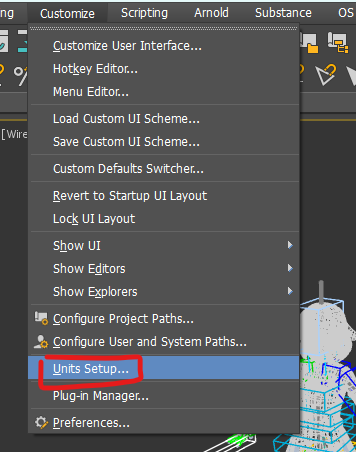
First check what unit your Max scene is using. Go to Customize > Units Setup.
Set Display Unit Scale to Metric → Centimeters.
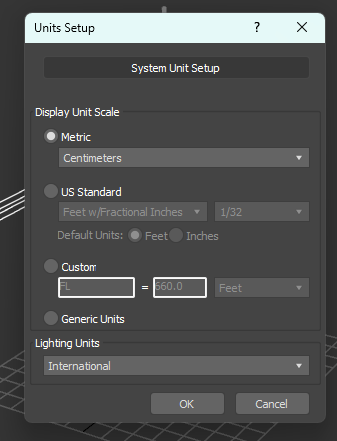
Why cm?
BipedPlus's internal calculations (height, scale, etc.) use cm as the single source of truth (SSOT). cm is also the standard Max export convention, so setting it here makes the FBX unit conversion downstream clean and predictable.
Even if your studio pipeline is locked to meters, cm is strongly recommended at least for the rigging and export phase. (Meter-scene support is on the tool roadmap.)
3. STEP 2 — Axis Alignment (Z-up → Y-up)
Max uses Z-up; Unity uses Y-up. Before exporting, align the Root to Unity's convention (Y is up, Z is forward).
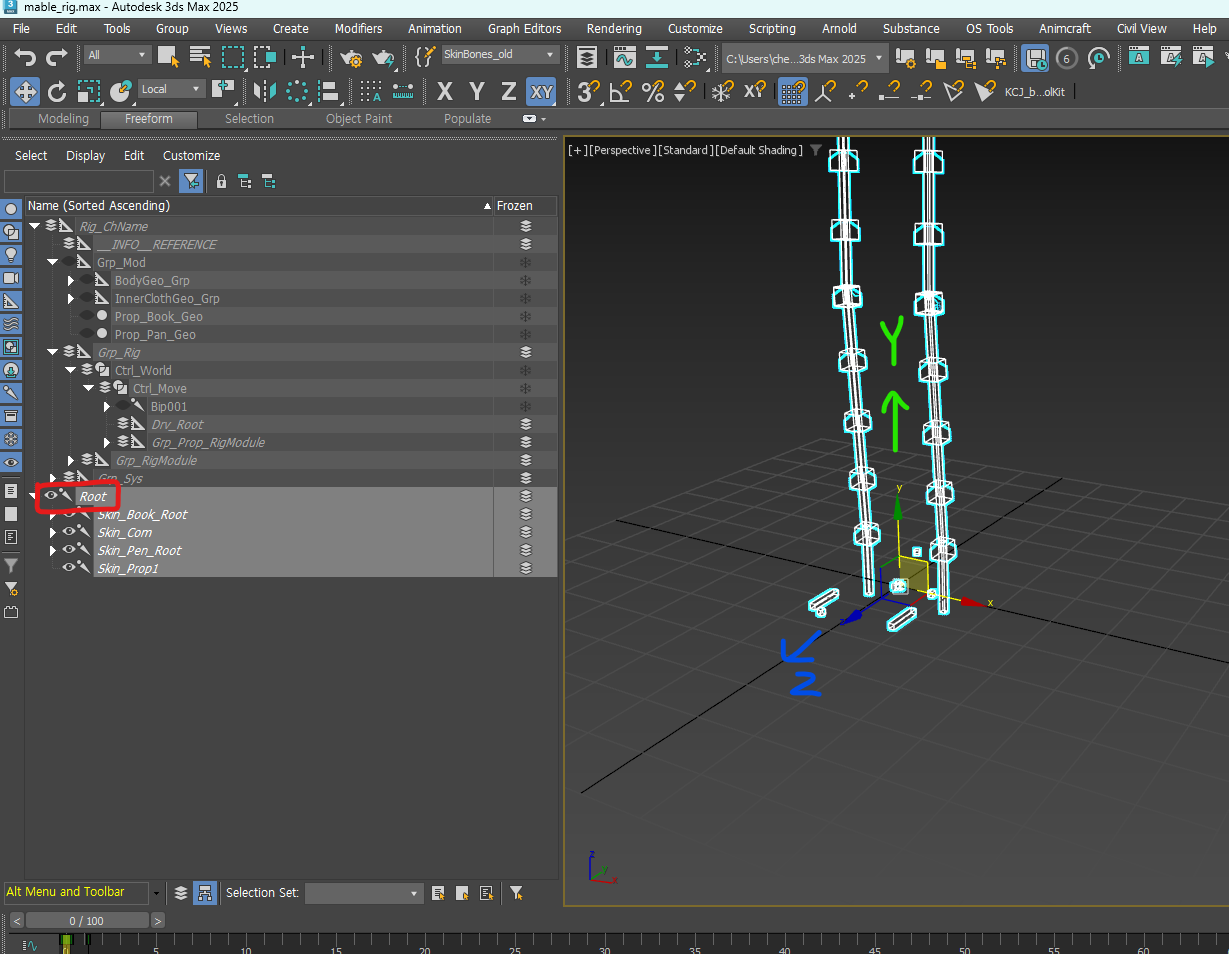
In 3ds Max terms: set Y as up, Z as the forward (front) axis — this matches Unity's orientation.
How to align: Select the Root and rotate +90° on the World X axis. (Rotate Transform Type-In → Absolute:World X = 90)
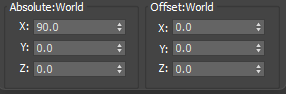
Why X-axis 90°?
To rotate from Z-up space to Y-up space, you need to roll the up vector 90° from Z to Y. This rotation bridges the gap between how each engine defines "up."
4. STEP 3 — Select Only What to Export (Skin Bones + Mesh)
When exporting, select only the skin bone tree + mesh (geometry). Controllers, helpers, and rig groups (Ctrl_World, Grp_Rig, Drv_Root, etc.) must not be included.
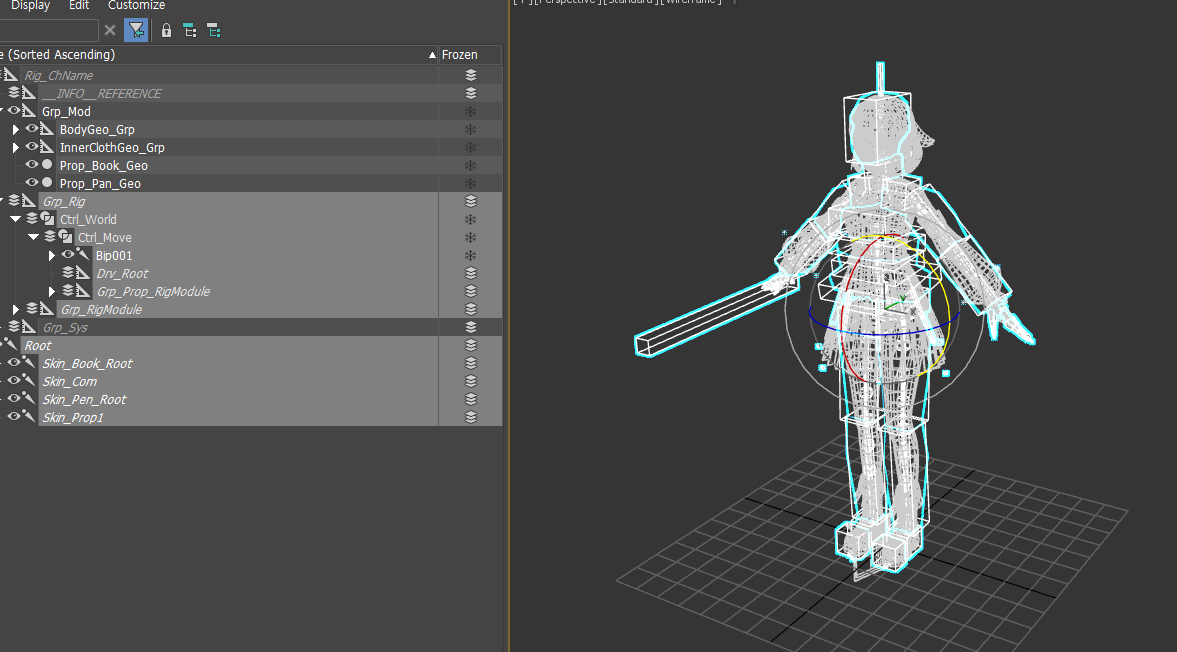
Why not export the entire rig?
All Unity needs is the skinned mesh + the skeleton that drives it. Rig controllers and helpers are useless in a game engine, and they also:
- Add unnecessary bone hierarchy that bloats the import, and
- Introduce control nodes with baked scale/offset offsets that cause Scale 0.01-style contamination.
Rule: export only what the game needs.
5. STEP 4 — FBX Export Options
(1) Include — Animation & Deformations
- Check Animation
- Check Deformations → Skins, Morphs (skin weights and morph targets must be exported together)
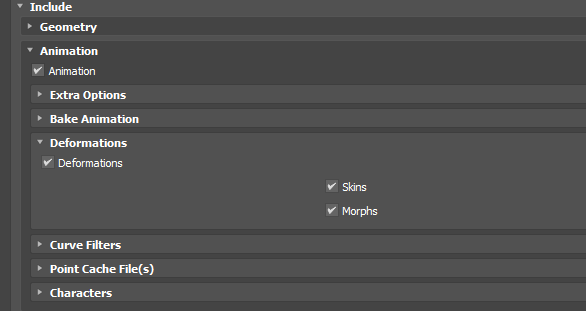
(2) Advanced Options — Units & Axis
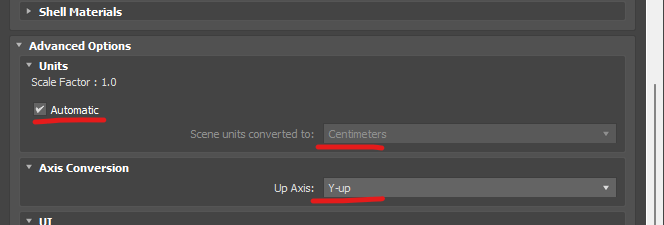
This is the most critical section. The unit and axis conversions explained above are finalized here.
| Option | Value | Meaning |
|---|---|---|
| Units → Automatic | Checked | Auto-detect and convert scene units |
| Scene units converted to | Centimeters | Scene is in cm, so export in cm |
| Scale Factor | 1.0 | No additional multiplier (units handle conversion) |
| Axis Conversion → Up Axis | Y-up | Match Unity's up axis |
Why this combination?
Scale Factor 1.0 + cm + Y-up lets Unity absorb the cm→m (÷100) conversion and axis flip automatically at import, resulting in Root Scale landing exactly at 1.0. Touching Scale Factor arbitrarily reintroduces the 100× / 0.01× error.
Since Unity's up axis is Y, you must always export with Y-up.
6. STEP 5 — Verify in Unity
Import the FBX into Unity, select the Root, and confirm it matches [Section 0. Success Criteria]:
- Position 0, 0, 0
- Rotation 0, 0, 0
- Scale 1, 1, 1
If all three match, the import is complete.
7. Common Mistakes & Troubleshooting
Mistake 1 — Root Scale comes in as 0.01
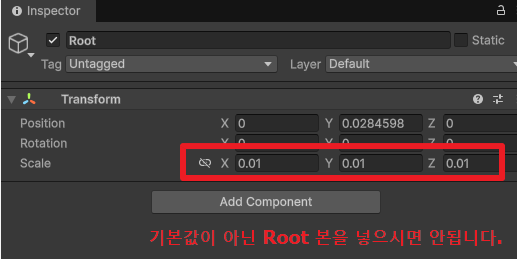
Do not include a Root bone that is not at its default transform.
Cause: A Root/control node whose transform has not been reset (zeroed) was included in the export. The 0.01 scale baked into that node (or the unabsorbed cm↔m delta) gets baked into the Unity Root.
Fix:
- Exclude controller/helper Root nodes from the export selection; only include the skin bone tree + mesh with clean transforms. (See STEP 3)
- Double-check that Scale Factor is 1.0 and Units = Centimeters in the FBX options.
Q&A — Scale shows 0.9999999. Is that a problem?
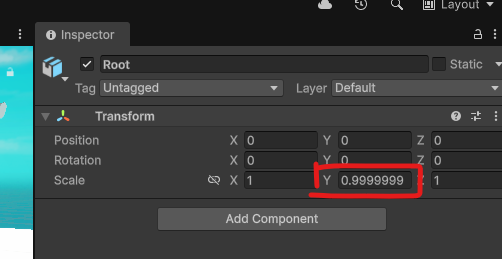
Short answer: it's fine. 3D graphics store values as floating-point numbers. After multiple matrix operations (rotation, unit conversion, etc.), 1.0 can drift to something like 0.9999999. This is a natural rounding result of the arithmetic — not an error — and has no practical impact.
If you still want a clean 1.0: Reset the node's transform on the PRS channels, then replace Position with a Position Constraint and Rotation with an Orientation Constraint. (Replace Transform Script with pure PRS)
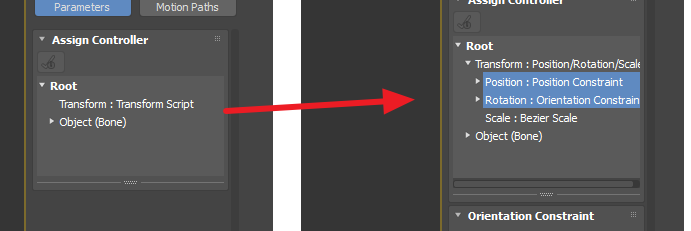
This eliminates accumulated drift.
8. Final Checklist
Before exporting, verify these five points:
- [ ] Units: Scene is set to Centimeters (
Customize > Units Setup) - [ ] Axis: Root rotated World X +90° (Y-up alignment)
- [ ] Selection: Skin bone tree + mesh only (no controllers or helpers)
- [ ] FBX Options: Units
Automatic / cm, Scale Factor1.0, Up AxisY-up, Animation · Skins · Morphs checked - [ ] Unity Verification: Root Transform =
0/0/0 · 0/0/0 · 1/1/1
A scale of
0.9999999is normal floating-point drift. Only clean it up with PRS reset + Constraint if it bothers you.