Team License Management
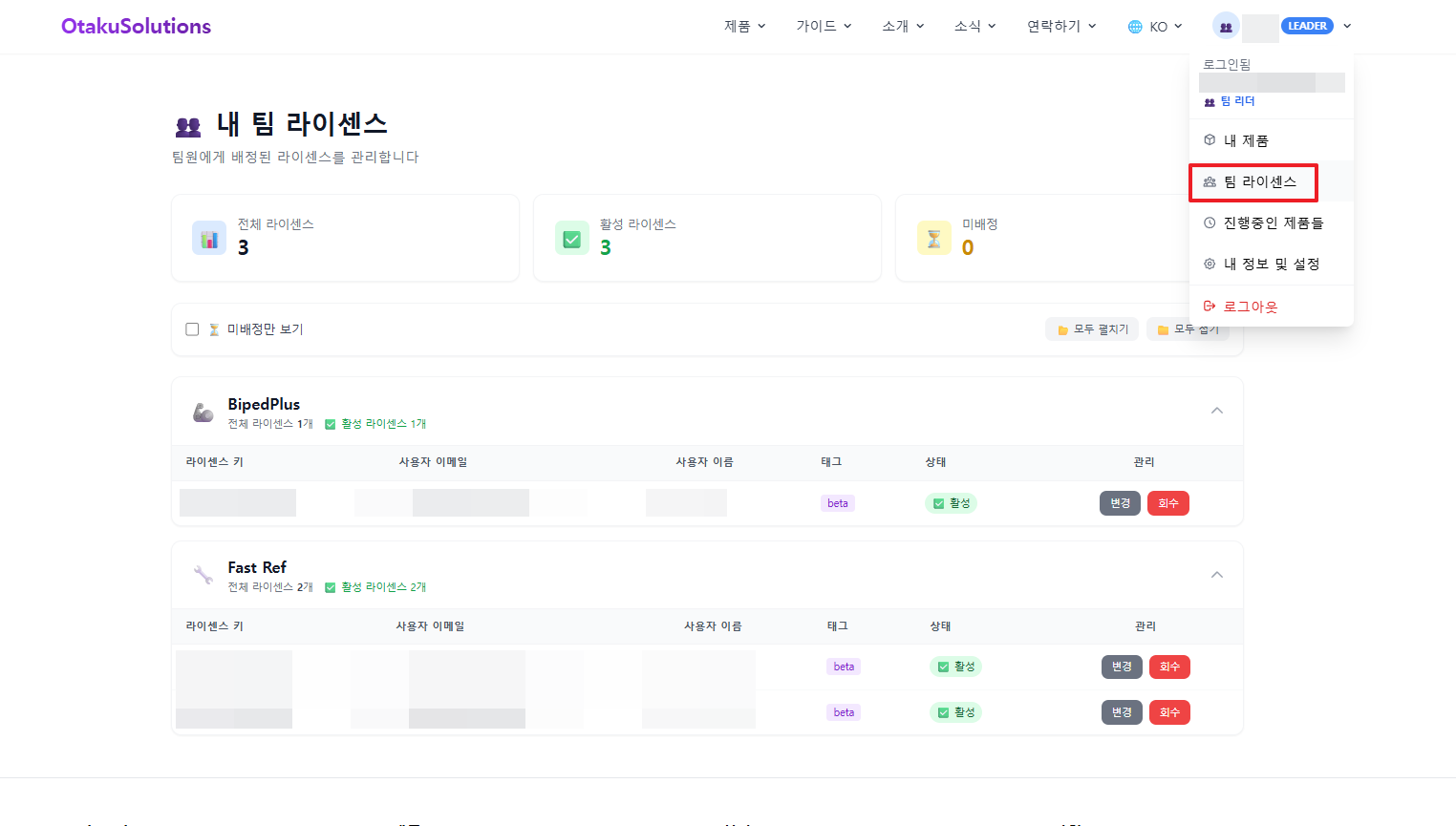
Download Markdown Download with Images1. Team Leader Access
When you purchase two or more of the same product, your account is automatically upgraded to Team Leader, and Team Licenses appears in the profile menu.
If the Team Licenses menu does not appear, contact us at contact@otakusolutions.com.
2. Purchase / Subscription Tabs
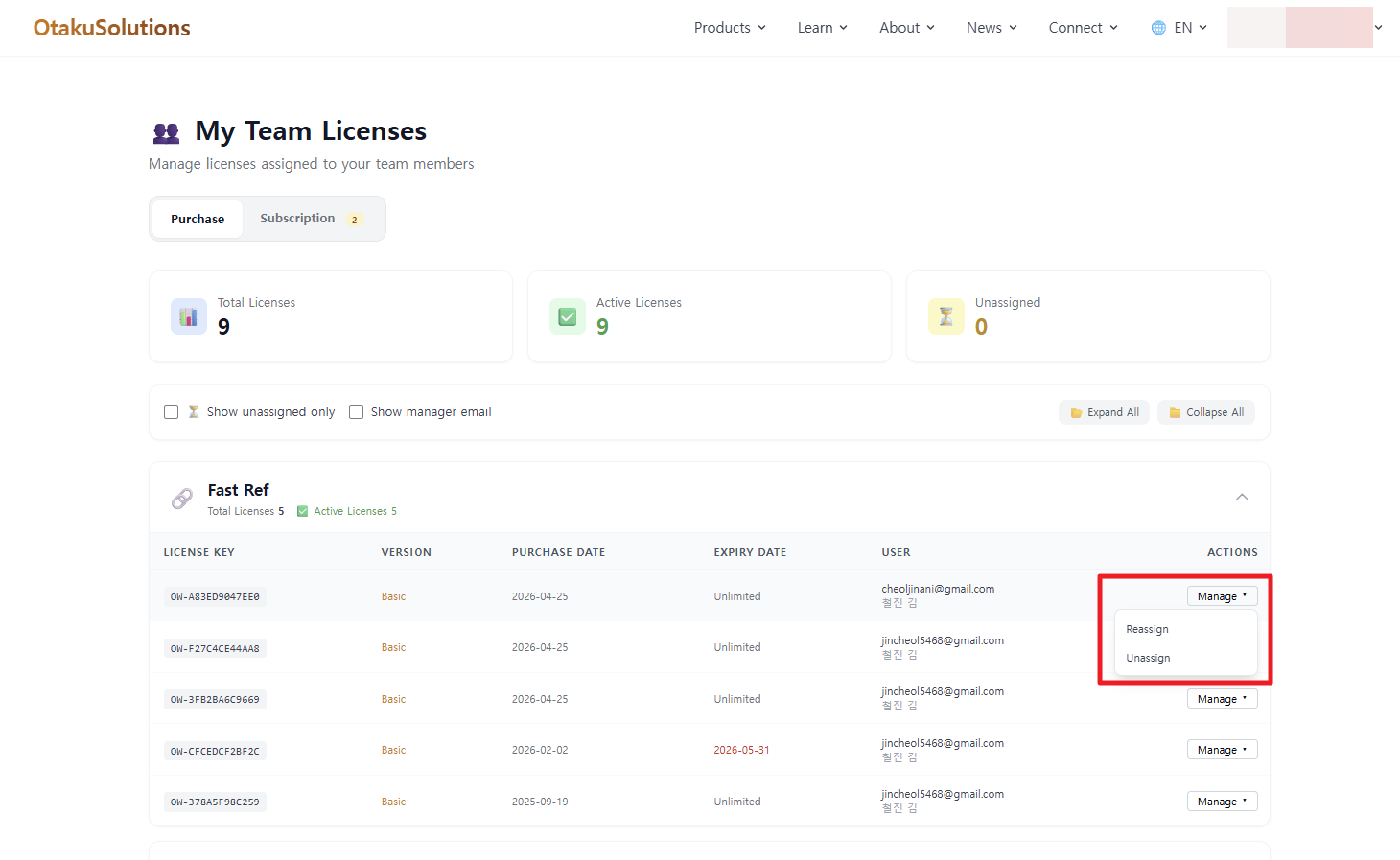
The My Team Licenses page is split into two tabs:
| Tab | Description |
|---|---|
| Purchase | One-time (purchase) licenses |
| Subscription | Subscription seats |
For each license you can Reassign or Unassign.
3. Assign & Unassign
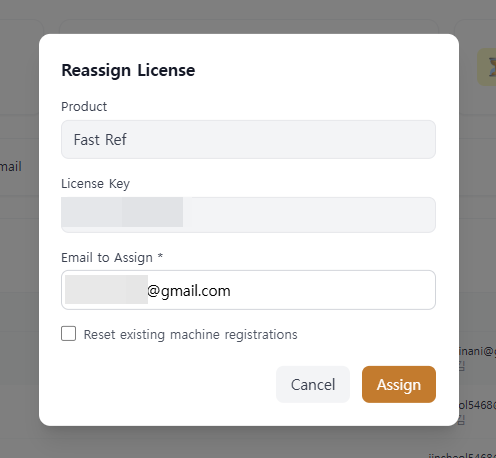
Reassign
- Open Manage for the license.
- Choose Reassign.
- Enter the teammate email in Email to Assign.
- Optionally check Reset existing machine registrations.
- Click Assign.
The email must belong to a registered OtakuSolutions account.
Unassign
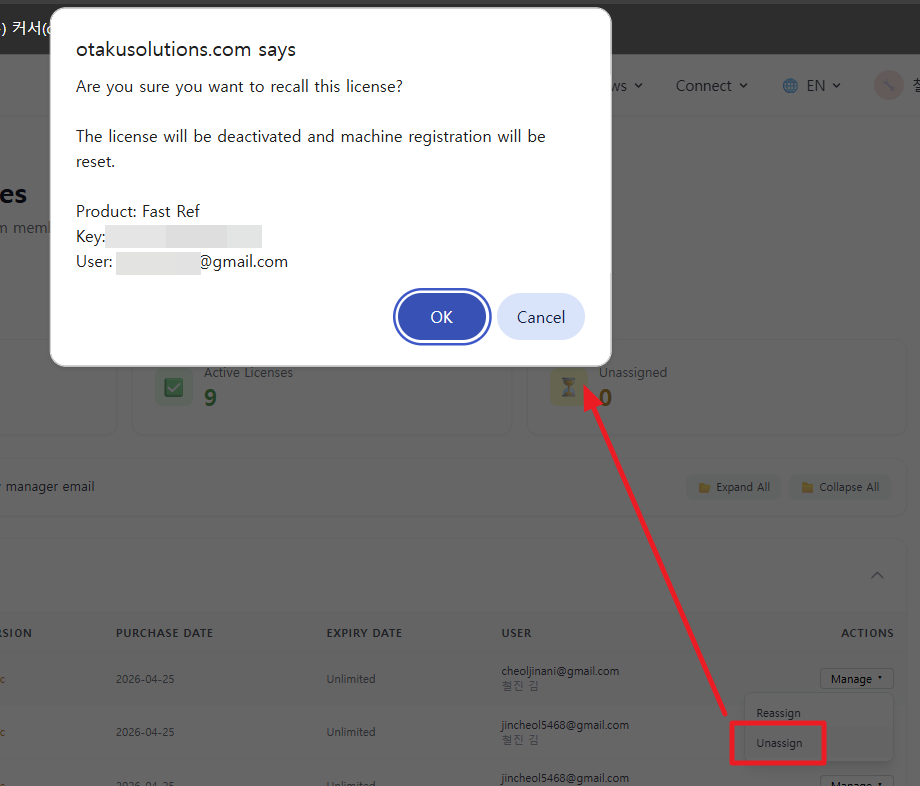
- Choose Manage → Unassign.
- Confirm the dialog, then click OK.
After unassigning, the license shows as Unassigned. The previous user can no longer use it, and machine registrations are reset. The seat stays available until you assign it to a new teammate.
Example: If a teammate leaves, Unassign the seat, then Reassign it to the new hire.
4. Extra Subscription Actions
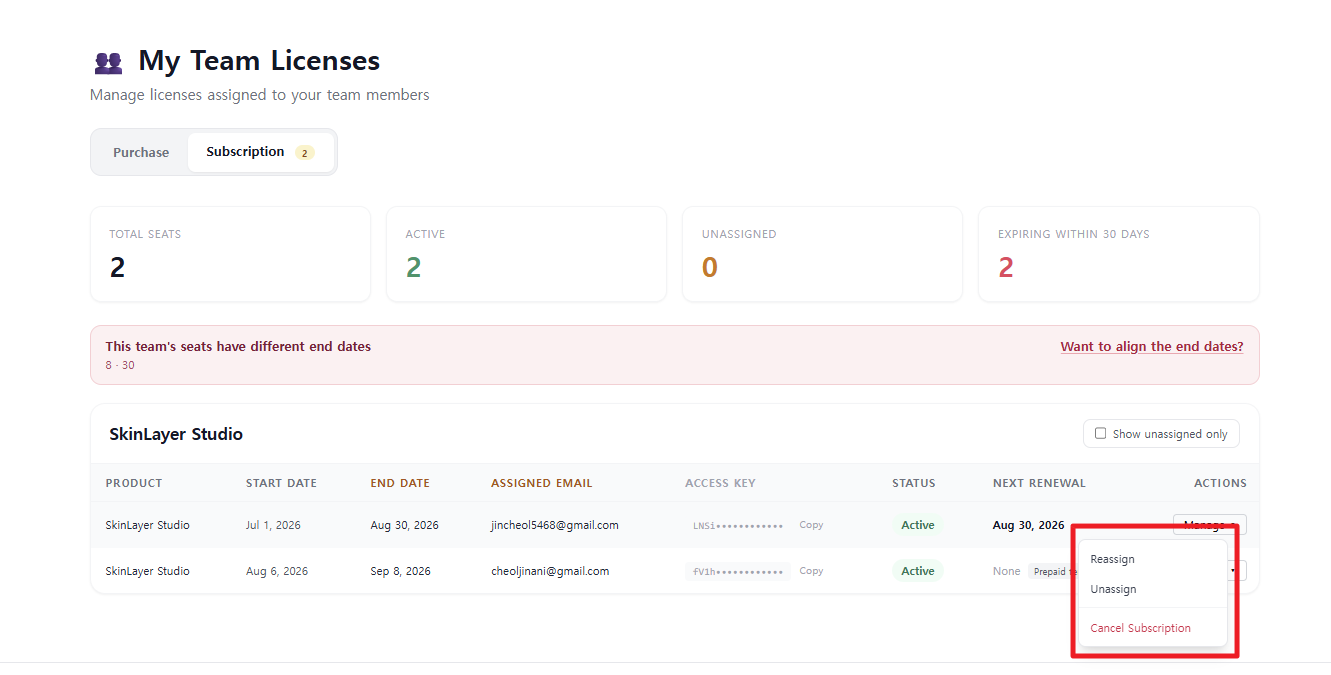
The Subscription tab also has Reassign and Unassign, plus Cancel Subscription.
You can cancel only some subscription seats temporarily, or manage seats flexibly.
| Action | Description |
|---|---|
| Reassign | Move a subscription seat to another teammate email |
| Unassign | Return the seat to Unassigned |
| Cancel Subscription | Cancel recurring billing for that seat only |
Seat end dates (renewal dates) may differ. To align renewal dates, contact contact@otakusolutions.com.
5. Notes
- Assignment emails must be registered OtakuSolutions account emails.
- Unassigned licenses can be reassigned to another teammate at any time.
- If Team License Management is missing or not working, contact contact@otakusolutions.com.