[FAQ] 3ds Max — Installed, but the OS Tools menu does not appear
Download Markdown Download with ImagesApplies to: OS Max tools (Fast Ref, BipedPlus) and Cross DCC tools (SkinLayer Studio).
This is not a SkinLayer Studio-only issue. It can appear on any OtakuSolutions tool that uses 3ds Max startup.
When this happens
Use this page if all of the following match.
- The OS Tools menu is missing from the 3ds Max menu bar.
- An OS Max tool or a Cross DCC tool cannot find Max.
- The installer still shows up to date / a normal install.
- Restarting Max and the tool does not change it.
- A manual run of the file may still work.
This is not a bad install. You do not need to put the files back in.
If this is not your case
If OS Tools is visible, but SkinLayer Studio [Re] still fails,
an earlier startup script may have errored. Use this page instead:
https://docs.otakusolutions.com/guide/skin-layer-studio/faq02-max-manual-connect?lang=en
Why this happens
Windows 11 sometimes stamps a System folder mark on the user folder (%LOCALAPPDATA%).
3ds Max 2021 Update 3 and later is supposed to run startup scripts at launch.
If the location is marked System or Hidden, Max skips those files silently. No error dialog appears.
So the connector and menu files can be in the right place, while Max never auto-runs them.
Scene files, shortcuts, and your work stay untouched. Only the folder marks are cleared.
| What it does | |
|---|---|
| Windows 11 | May stamp System on the user folder |
| 3ds Max 2021 U3+ | Will not run startup from a System/Hidden location |
Fix — clear the marks only
The script below does not create or delete files. It only clears Hidden / System marks.
The Hidden mark on %LOCALAPPDATA% itself is left alone. That can be a Windows default.
1. Paste the script
- In 3ds Max, open F11 (MAXScript Listener).
- Click the lower white pane.
- Copy the entire script below, paste it, and press Enter.
- Do not drag it into the viewport. Do not copy it into the
startupfolder.
-- ============================================================================
--  STEP 2 - clear Hidden/System, text only.
--
--  Standalone. Paste this file by itself. It does not need the diagnostic
--  window, and the diagnostic window does not call this file.
--
--  Paste into the Listener (F11), Enter, then RESTART Max.
--  Clears attribute bits only. Creates, moves or deletes nothing.
--    1) SYSTEM on %LOCALAPPDATA% - Win11 24H2 stamps it, and Max then skips
--       every user startup script and macro underneath.
--    2) HIDDEN/SYSTEM on the Max user script folders and our files.
--  Hidden on LOCALAPPDATA itself is left alone: it can be a Windows default
--  there, and clearing it would be an unrequested change to the user's PC.
--
--  ASCII only, on purpose - this runs on machines with any locale.
-- ============================================================================

(
    local localApp = ""
    try ( localApp = systemtools.getEnvVariable "LOCALAPPDATA" ) catch ( localApp = "" )
    local scripts  = getDir #userScripts
    local startup  = getDir #userStartupScripts
    local macros   = getDir #userMacros

    local pkgDirs = #("os_skinLayerStudio_connector", "os_fast_ref_package", "os_bipedPlus_package")
    local ourStartupMs = #(
        "os_sls_connector_launcher.ms", "os_sls_00_menu.ms",
        "os_fast_ref_menu.ms", "os_fast_ref_path.ms",
        "os_bipedPlus_menu.ms", "os_bipedPlus_path.ms"
    )
    local ourMacros = #(
        "sls_connector.mcr", "os_tools_about.mcr",
        "os_fast_ref.mcr", "os_bipedPlus.mcr"
    )

    fn q p = "\"" + p + "\""

    fn runAttrib arg = (
        local cmd = "attrib " + arg
        format "  %\n" cmd
        try ( HiddenDOSCommand cmd ) catch (
            try ( DOSCommand cmd ) catch ( format "    (attrib failed)\n" )
        )
    )

    fn show lbl p = (
        local h = true
        local s = true
        try ( h = getFileAttribute p #hidden ) catch ()
        try ( s = getFileAttribute p #system ) catch ()
        format "  hidden=% system=%  %\n" h s lbl
    )

    fn clearOne p = (
        try ( setFileAttribute p #hidden false ) catch ()
        try ( setFileAttribute p #system false ) catch ()
    )

    format "\n========== STEP2 attrib fix ==========\n"

    -- 1) LOCALAPPDATA: System only. /D is required so attrib treats the
    --    argument as the directory itself and not as a file pattern.
    if localApp != "" then (
        format "\n-- 1) LOCALAPPDATA, System only --\n"
        try ( setFileAttribute localApp #system false ) catch ()
        runAttrib ("-s " + (q localApp) + " /D")
    ) else (
        format "\n-- 1) LOCALAPPDATA not readable, skipped --\n"
    )

    format "\n-- 2) Max user folders --\n"
    for d in #(scripts, startup, macros) do runAttrib ("-h -s " + (q d) + " /D")
    runAttrib ("-h -s " + (q (pathConfig.appendPath startup "*")))
    runAttrib ("-h -s " + (q (pathConfig.appendPath macros  "*")))

    format "\n-- 3) product package folders --\n"
    for nm in pkgDirs do (
        local pkg = pathConfig.appendPath scripts nm
        if doesFileExist pkg do (
            runAttrib ("-h -s " + (q pkg) + " /D")
            runAttrib ("-h -s " + (q (pathConfig.appendPath pkg "*")) + " /S /D")
        )
    )

    -- Belt and braces for environments where attrib.exe is blocked.
    for n in ourStartupMs do clearOne (pathConfig.appendPath startup n)
    for n in ourMacros    do clearOne (pathConfig.appendPath macros  n)

    format "\n-- verify (want system=false everywhere) --\n"
    format "   LOCALAPPDATA may keep hidden=true, that is fine.\n"
    if localApp != "" do show "LOCALAPPDATA" localApp
    show "scripts" scripts
    show "startup" startup
    show "usermacros" macros
    for n in ourStartupMs do (
        local p = pathConfig.appendPath startup n
        if doesFileExist p do show n p
    )
    for n in ourMacros do (
        local p = pathConfig.appendPath macros n
        if doesFileExist p do show n p
    )

    format "\nNext: paste step3_connect_and_menu.ms to use the tool right now.\n"
    format "Then CLOSE Max completely and reopen - paste nothing that time.\n"
    format "=====================================\n"
)
If the Listener prints a STEP2 attrib fix log, the step succeeded.
2. Close Max completely, then reopen
Do not paste any script on this restart.
This checks whether Max now reads startup by itself.
Check
| Before | After |
|---|---|
| No OS Tools on the menu bar | OS Tools menu is visible |
| The tool cannot see Max | Connects automatically when Max starts |
| Install files were already there | No reinstall needed |
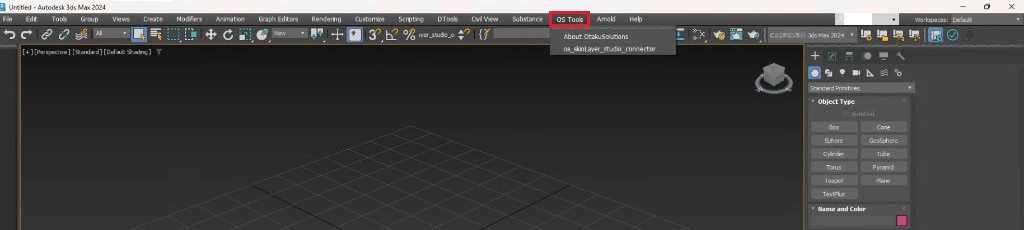
If OS Tools is on the menu bar after restart, you are done.
You do not need to install again or paste another script.
Do not
- Reinstall the same files
- Expect Run as administrator on SkinLayer Studio to fix this
- Delete files inside
startup - Run a
.bator exe that we did not give you
Still failing?
Windows rarely stamps the same mark again.
If the menu disappears after a later launch, tell us.
- Feedback: https://otakusolutions.com/en/feedback
- Contact: https://otakusolutions.com/en/contact
If OS Tools is visible but the connection still fails, see FAQ.2.
https://docs.otakusolutions.com/guide/skin-layer-studio/faq02-max-manual-connect?lang=en