Ep.8 — FBX Export Options (Detailed Options Guide for Engine Import)
Download Markdown Download with ImagesSummary: The upper area of the FBX options panel exposes 3ds Max's built-in FBX export controls; the lower area contains Fast-Ref's proprietary Namespace removal, root alignment, and dynamic filename generation features. Save your configured options as a Preset for team-wide sharing.
1. The Core Mechanism of Option Control
Fast-Ref's exporter panel stores configured settings as Preset files on disk, and both the single exporter and the overnight Batch Tool (EP09) are completely governed by the same preset — keeping output deviation at zero.
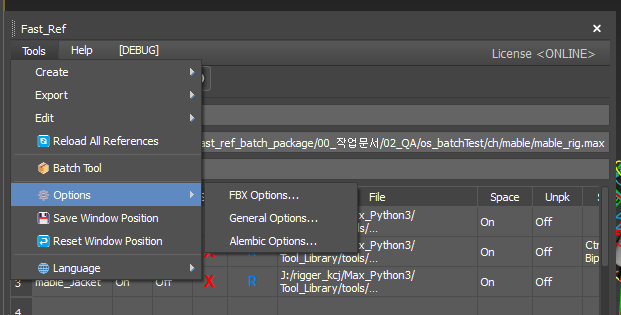
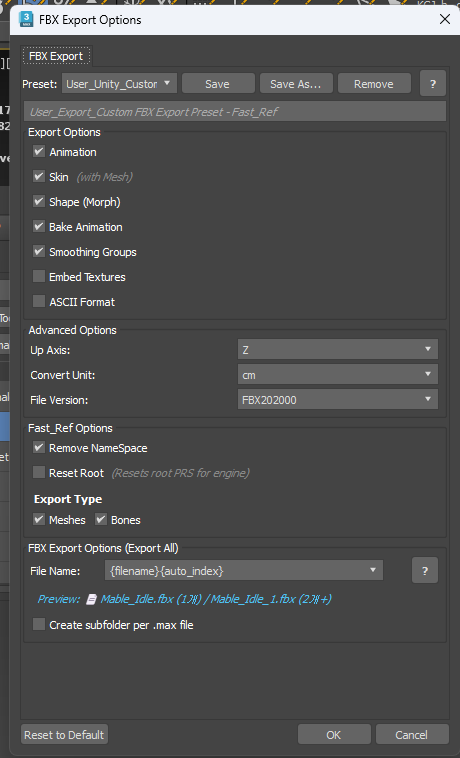
2. 3ds Max Default FBX Control Area (Upper)
These options connect to the FBX SDK options provided by the 3ds Max engine itself. Here is a practical-tips-focused summary.
| Option | What It Actually Does | 💡 Practical Guide & Tips |
|---|---|---|
| Animation | Whether to embed keyframe animation data in the FBX | Obviously must be On when exporting animation clips. But when first registering the character's Skeletal Mesh in the engine, turn this off and export a clean T-pose at frame 0. |
| Skin | Whether to include skin binding information (deformation data) | - First mesh registration: On · - Animation clips only: Off · 👉 Once the character mesh is already in the engine, turning off Skin when exporting animation clip FBXs reduces file size by 10x and speeds up export dozens of times — a powerful practical technique. |
| Shape | Whether to include Blend Shape / Morph data for facial expressions | Always On for main characters with facial animation. |
| Bake Animation | Bake keys at every single frame regardless of original frame rate | Keeping Bake On is the production standard for preventing animation squishing caused by engine physics interpolation conflicts. |
| Smooth Groups | Store smooth shading information for 3D mesh faces | Always On. Accidentally turning this off and importing into the engine causes the beautiful character to come out looking like a Minecraft character — blocky and angular — a total disaster. |
| Texture Embed | Force-embed texture image sources as binary data inside the FBX file | Always Off. Enabling this causes dozens of megabytes of images to tangle inside a single FBX, making file size spiral out of control. Manage paths as relative paths inside the 3D scene only. |
| Up Axis | Set the 'sky direction' axis the game engine uses | - Unreal Engine: Z-up (matches 3ds Max) · - Unity Engine: Pressing the Unity preset button auto-adjusts to Y-up |
| Units | Match the scale unit inside the engine | 3ds Max defaults to cm scale. For Unity (prefers m units), you must manually verify the scale factor via the Unity preset to avoid shrink/inflate bugs. |
| File Version | FBX export file format version | Standardising on FBX 2020 — the most error-free and stable format in the current industry — is recommended. |
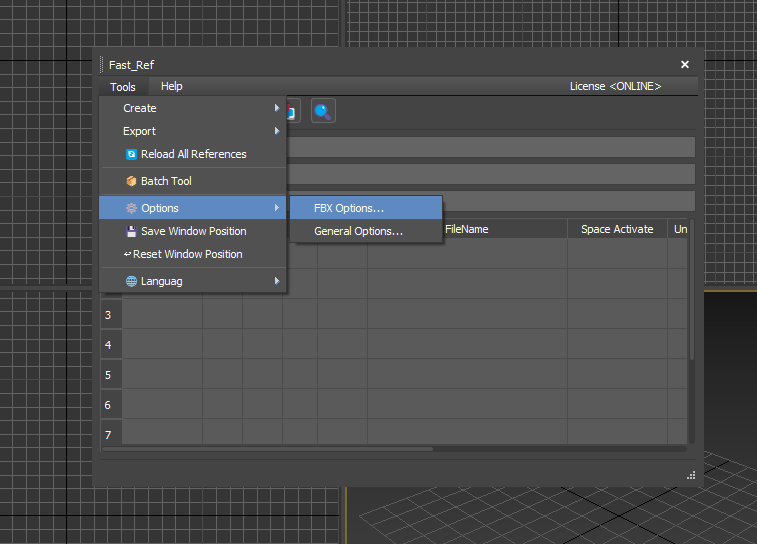
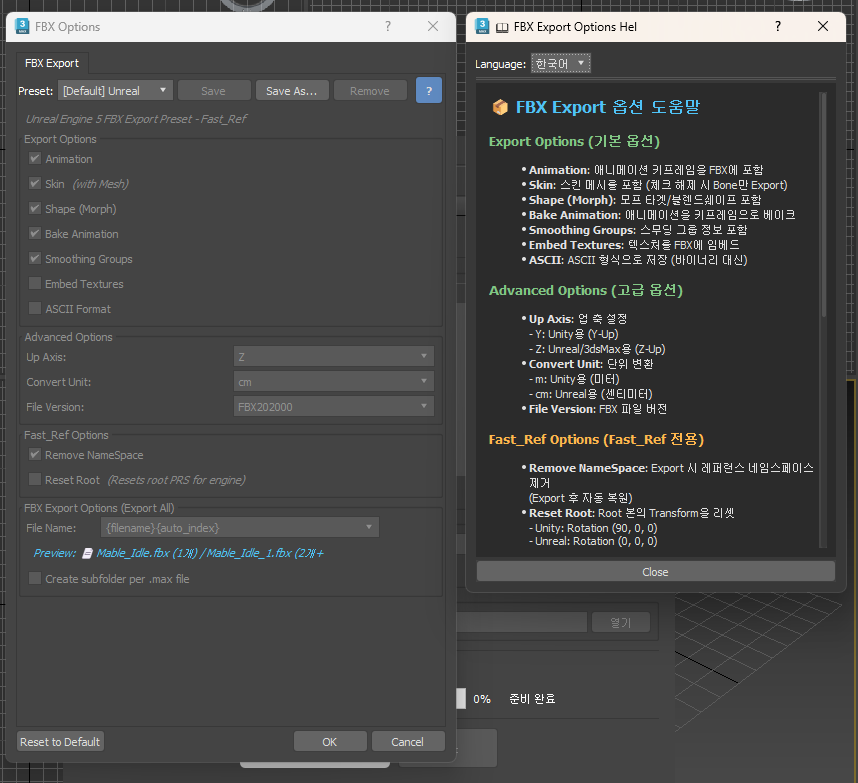
3. Fast-Ref Exclusive Export Control Area (Lower)
These production-focused automation features are available only within Fast-Ref.
✂️ Remove Namespace
Forcibly strips the prefix from names like Mable_A:L_Hand (added temporarily for multi-character placement), so the engine importer receives only the original clean bone name L_Hand. No need to worry about retargeting breaking inside the engine.
🎯 Reset Root (Force-Freeze Root Bone at Origin)
Even if the character has animation where it runs forward through world space, there are times when the root bone must be output locked at its origin position and rotation (0,0,0) for engine root motion computation or binding rules.
- Recognises a specific root bone name, force-holds it at the origin, and optionally applies a correction rotation (e.g. 90 degrees on Z) to align the character's forward direction.
- 🚨 Critical Warning: Because this feature temporarily computes the character's scene coordinates at export time, the working .max file must be closed without saving immediately after FBX extraction to prevent scene animation corruption. This is a tip leads must drill firmly into their artists.
4. Dynamic File Naming Rule Design
Instead of manually typing each output FBX filename, define a rule using the dynamic variables below to auto-generate filenames.
[Original File Name]: Current scene max filename[Namespace]: The unique name assigned to that character[Date]: Today's date auto-stamp[Auto Namespace / Index]: If there is only one character in the scene, exports with the clean original name. The moment two or more are detected, automatically splits into names likeFileName_Yuna,FileName_Mila— an impressively smart automation.
🏷️ Create Rigging Data (Export to Selection - ES Tag)
Rather than grabbing the entire viewport, this reads the Selection Set name (e.g. Export Body) registered by the rigger during the character master setup, and precisely filters to export only the mesh and skinning weight data. If the syntax is incorrect, a red error mark appears on the right side of the panel for easy identification and correction.
📁 Create Subfolder Per Max File
- Checked On: Automatically creates subfolders named after the working scene, useful for cinematic shots where many characters are interleaved.
- Checked Off: Recommended for cleanly outputting a single character's motion clips (Run, Walk, Idle) in a flat structure.