SkinLayerStudio
Ep.3 — One Tool for Every DCC
Download Markdown Download with ImagesSkinLayer Studio is a cross-DCC tool. The Connector, Pick, hotkeys and menus are the same in 3ds Max, Maya and Blender. Demos in this episode mostly use 3ds Max.
1. Connector and Pick
- The Connector list shows 3ds Max, Maya and Blender.
- Choosing a DCC and picking work the same way.
- It behaves the same in Maya and Blender.
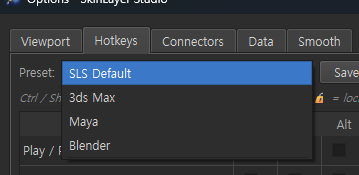
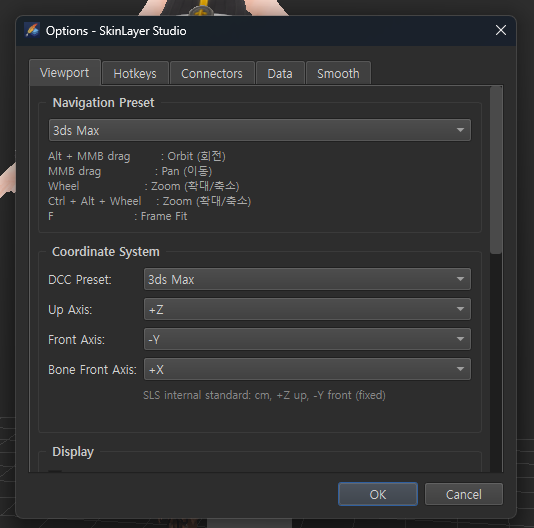
- Open Options and choose your program's shortcuts under Hotkeys. Presets are SLS Default, 3ds Max, Maya and Blender.
2. Change the Language
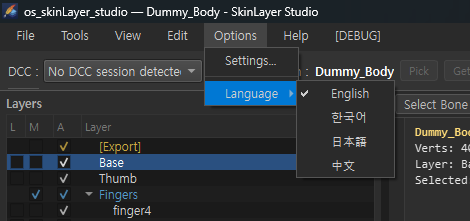
Choose a language from the Language menu at the top.
3. Menus After Installing the Connector
- In Install Connector, choose the DCC and click Install.
- In 3ds Max, the Connector appears in the OS Tools menu. This window is a support tool that helps the connection.
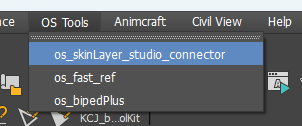
- In Maya, the same window opens from OS Tools.
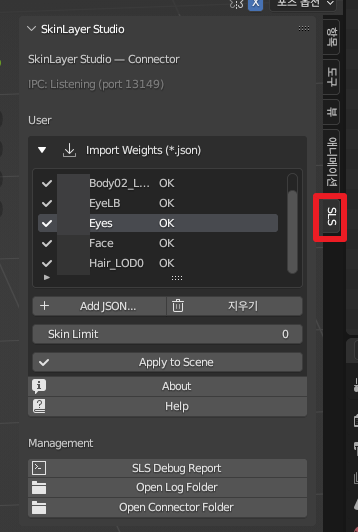
- In Blender, nearly the same menu is in the SLS panel.
4. Blender Axes
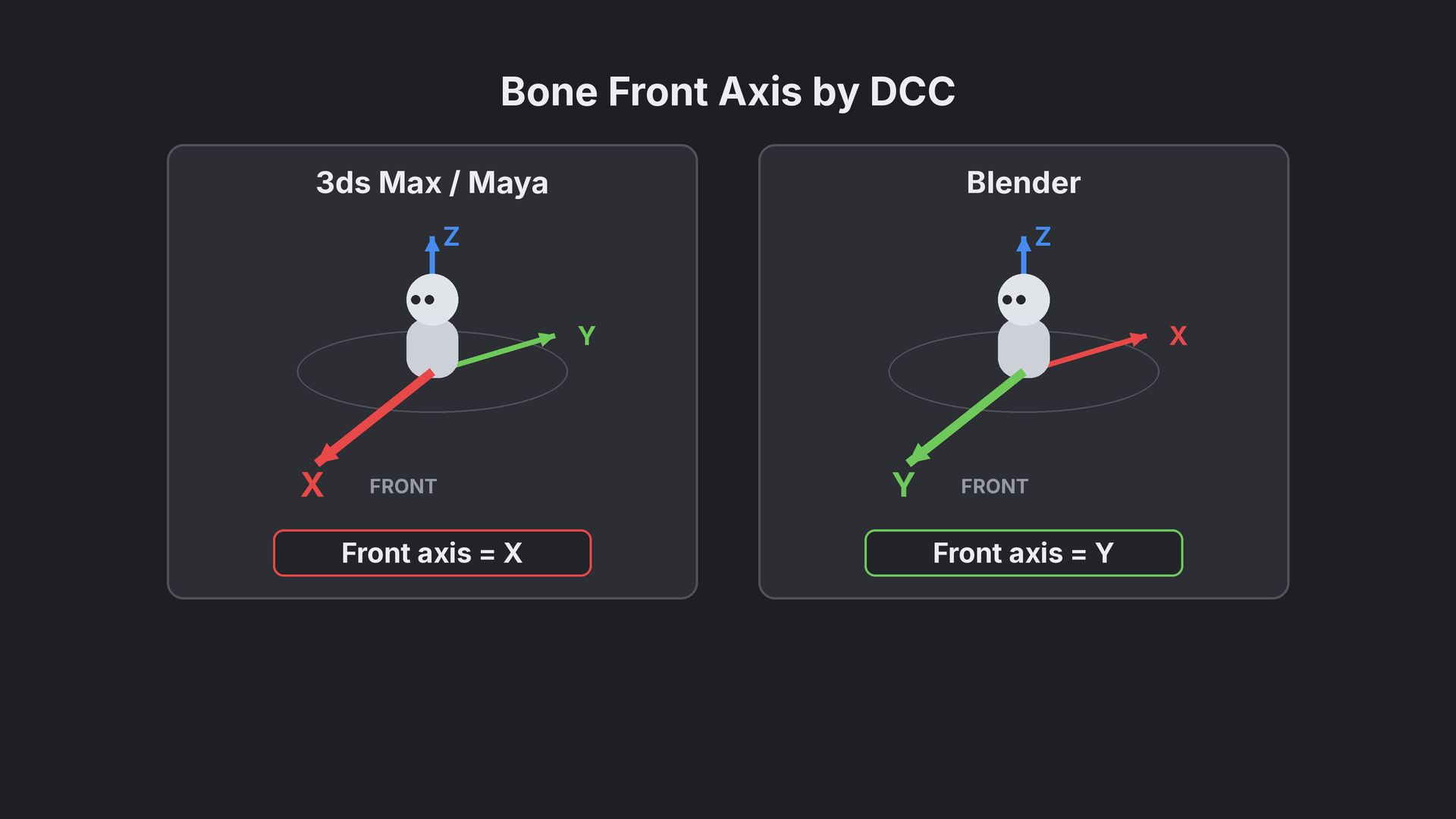
Maya and 3ds Max usually use X as the front axis. Blender uses Y.
- In the Connector, choose Blender and click Pick All.
- The mesh comes in correctly.
- Bone Front Axis on the Viewport tab of Options is Y, so the orientation matches. Choosing a DCC preset sets the Up / Front axes together.
5. If It Won't Connect
The connection runs on the same computer, so it usually works right away.
- If not, open the SkinLayer Studio Connector window in the DCC.
- Opening the window restarts the connection.
- Check the connection status again in SkinLayer Studio.
- If Pick still fails, check under Options → Connectors whether the installed connector is outdated. Reinstall with Open Installer... or re-read the status with Refresh.
- If it still doesn't work, click Help for contact details. Reach us by email, KakaoTalk or WeChat and we will help remotely.
The Ctrl / Shift / Alt columns in the Hotkeys table apply only to brush mode keys.
Whichever DCC you use, Pick, hotkeys and menus are the same.
Previous: Ep.1 — Install to First Apply
Next: Ep.4 — Brush Settings