SkinLayerStudio
Ep.4.1 — Connected Brush Projection
Download Markdown Download with ImagesThis covers Connected, the new option in Brush projection. If painting one finger bleeds into the next one, switch from Screen to Connected.
| Topic | What it covers |
|---|---|
| Screen bleed | Why everything inside the on-screen circle gets painted, including the next finger |
| Connected | Painting only the mesh connected to the brush center |
| Where to use it | Thin, protruding parts such as fingers |
Related: see Brush Mode and Screen first in Ep.4 — Brush Settings.
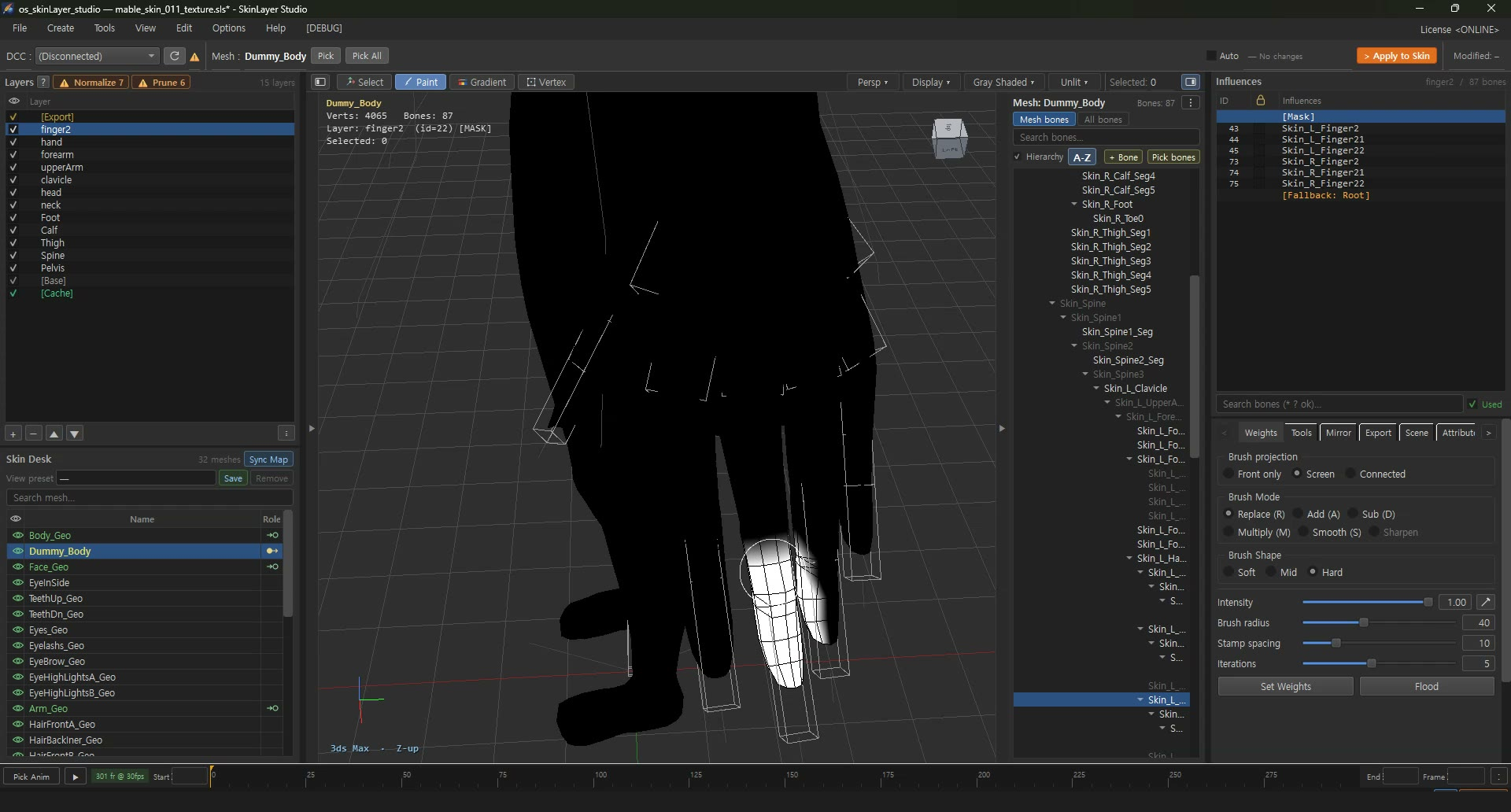
1. Painting a Mask on One Finger
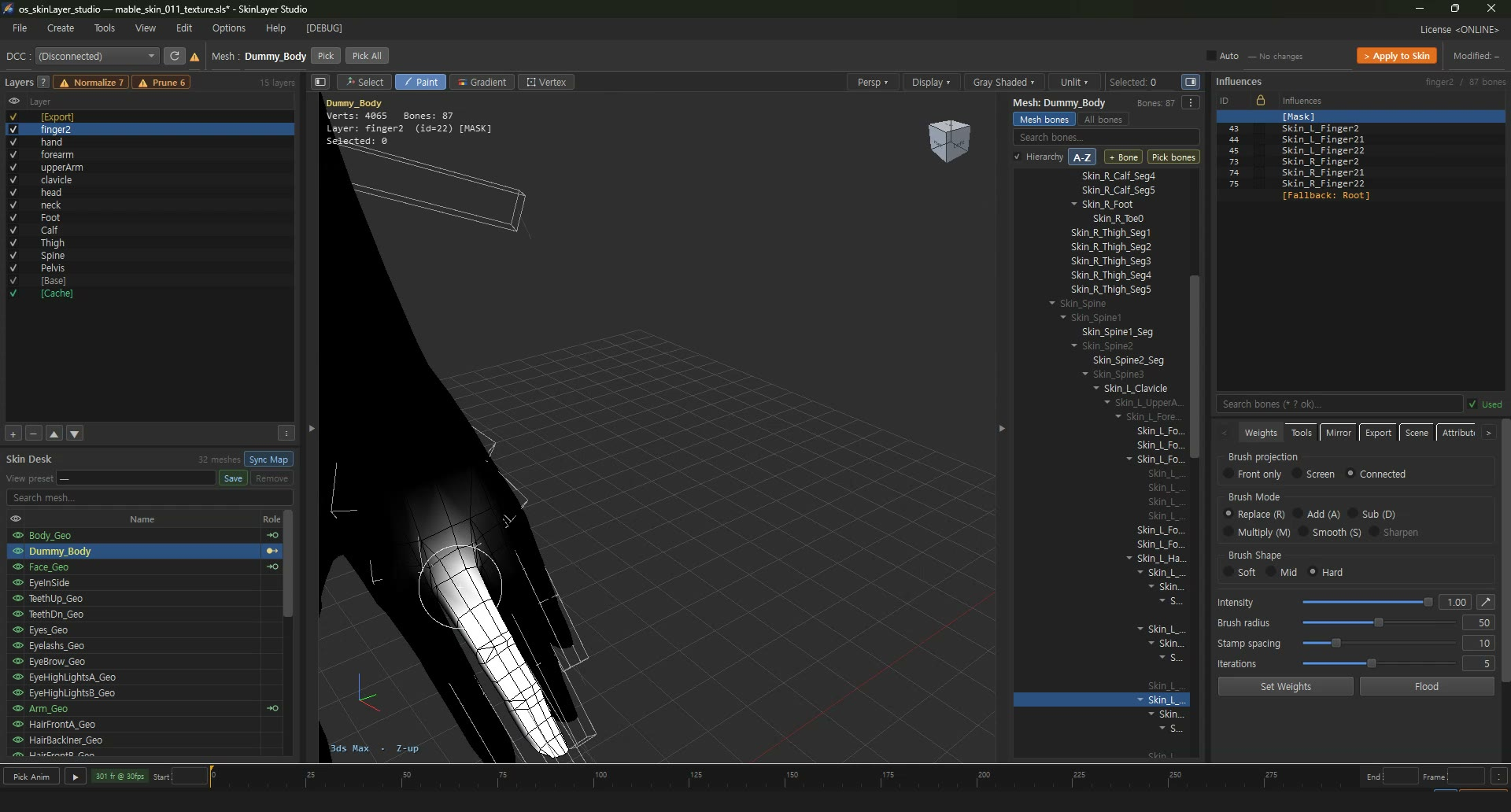
- Select the layer for the finger. The example uses the finger2 layer.
- Choose [Mask] in Influences to switch to the Mask view. Painted areas show white and unpainted areas show black.
- Paint the Mask on just the middle finger.
2. Why Screen Bleeds into the Next Finger
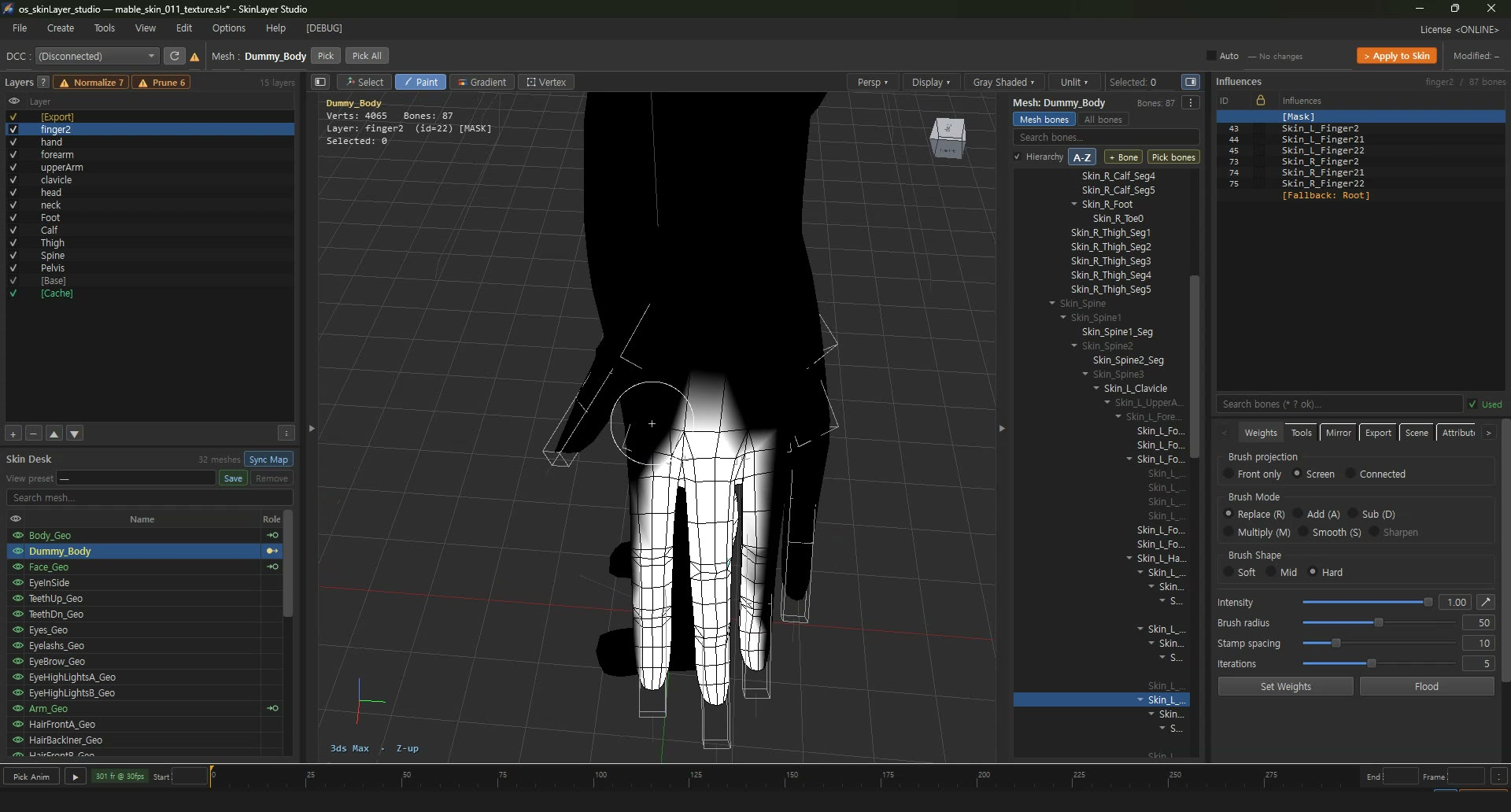
Screen works in screen space. Any mesh inside the on-screen brush circle gets painted.
- Even if you aim at the middle finger only, the fingers caught in the circle get painted too.
- You then have to erase the bleed, which is a hassle.
3. Switching Brush projection to Connected
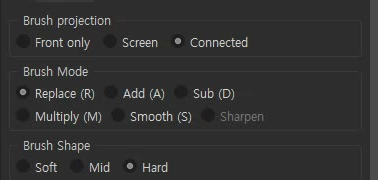
- Open the Weights tab at the lower right.
- Under Brush projection, choose Connected. The options are Front only, Screen and Connected.
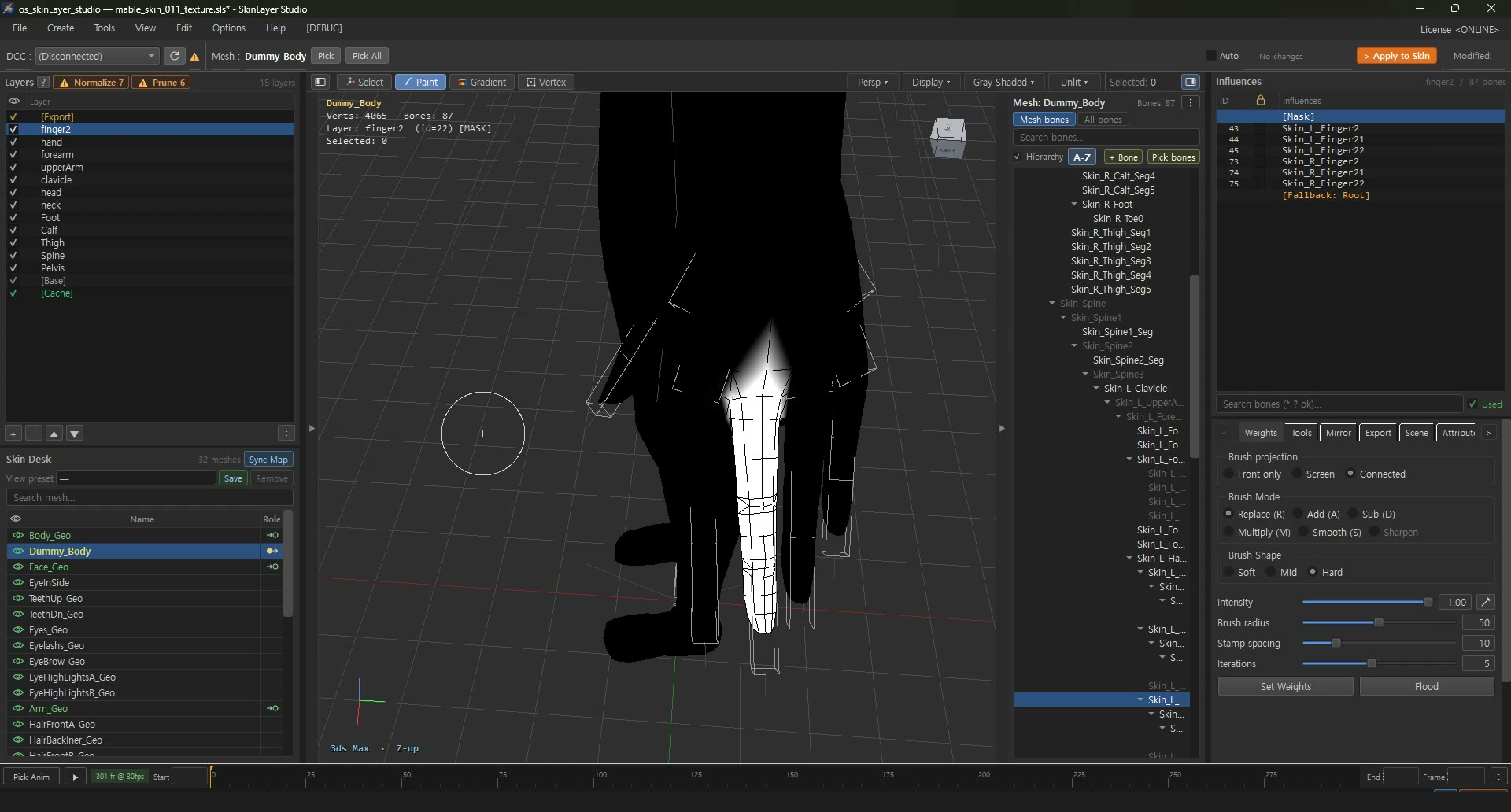
- Paint the same spot again.
- Only the mesh connected to the brush center gets painted. The other fingers stay untouched.
The same stroke gives very different results with Screen and Connected.
4. When to Use Connected
It is especially handy for weighting or masking thin, pointy parts such as fingers. Neighboring parts are not painted even when they fall inside the brush circle.
| Brush projection | What gets painted |
|---|---|
| Screen | Everything inside the on-screen brush circle, including the far side and neighboring parts |
| Connected | Only the mesh connected to the brush center |
| Front only | Not covered in this episode |
Previous: Ep.4 — Brush Settings
Next: Ep.4.2 — Gradient Tool