Common
How to Install Plugins
Download Markdown Download with Images1. Sign Up and License Application
1. Sign up on OtakuSolutions (https://otakusolutions.com/en/)

2. Click [Apply for Trial] on Fast-Ref
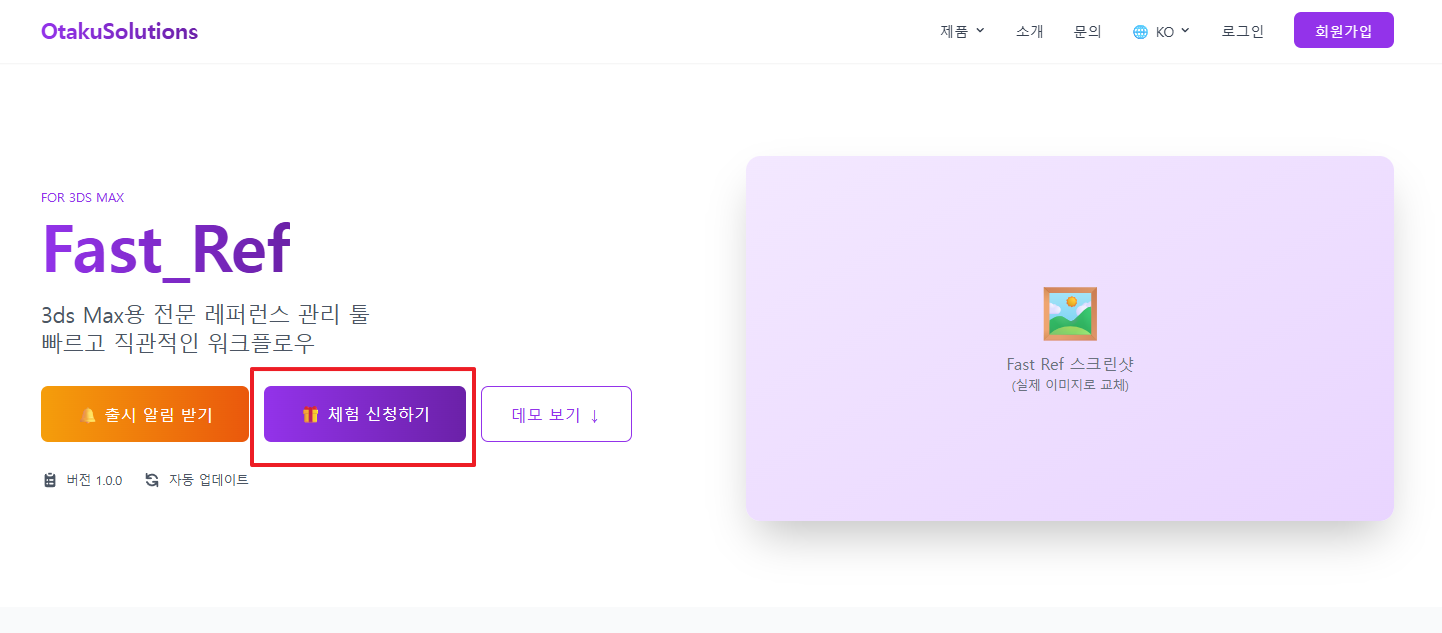
3. After admin approval, confirm your license issuance
4. Select the appropriate Max version and download the mzp installer

2. 💻 Download and Install the .mzp File
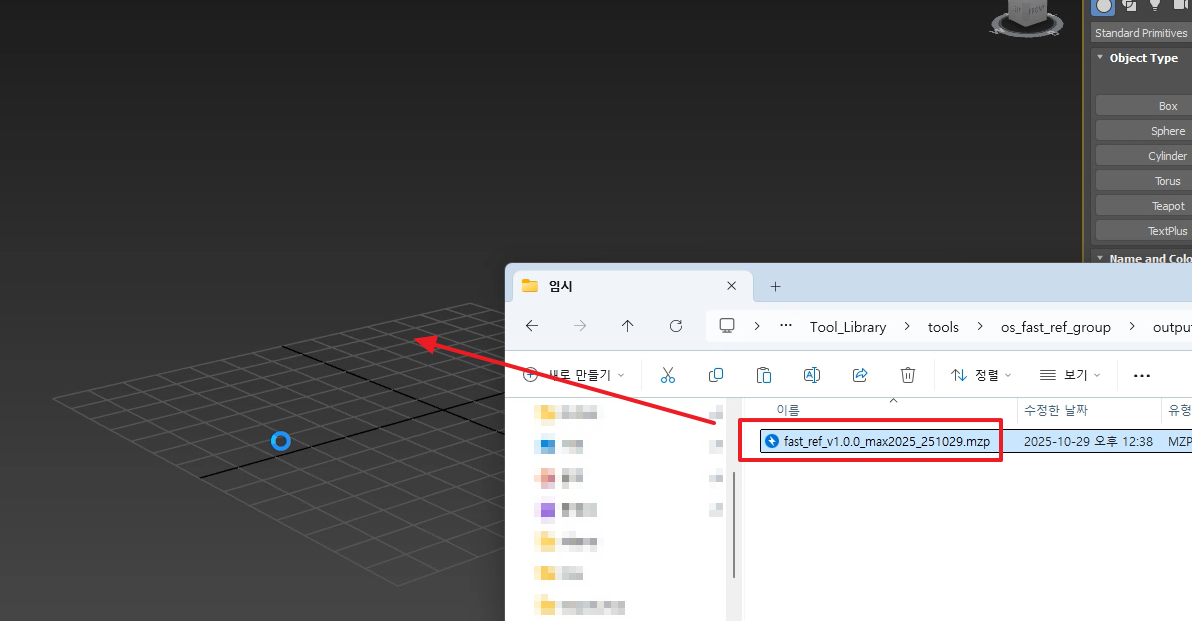
- Launch 3dsMax for the first time.
- Drag the downloaded .mzp file onto the 3dsMax viewport for one-click installation. (Automatically installs for your version of 3dsMax.)
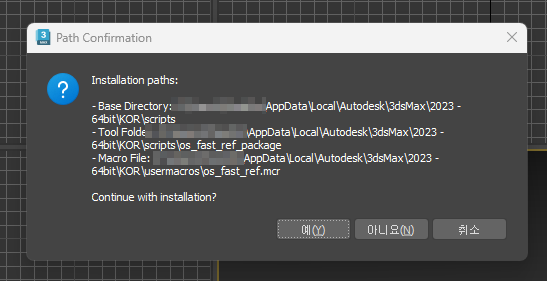
- This step confirms the whitelist installation path. For security purposes, the installer runs only on the listed paths. Autodesk's default path is typically as shown below. If it differs, please verify the path before proceeding.
# Autodesk default path
C:\Users\<user>\AppData\Local\Autodesk\3dsMax\<version>...
- If the path is correct, click [Yes]. If unexpected, click [No] and contact OtakuSolutions with a screenshot.
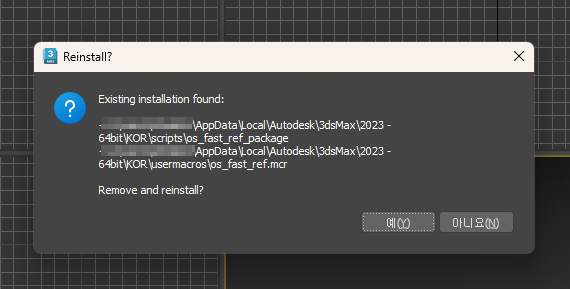
- This dialog appears when the plugin is already installed. If the path is correct, click [Yes].
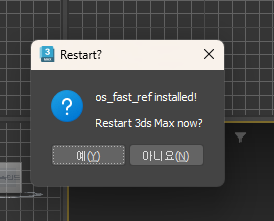
- When installation is complete, the message shown above appears. Click Yes to restart 3dsMax.
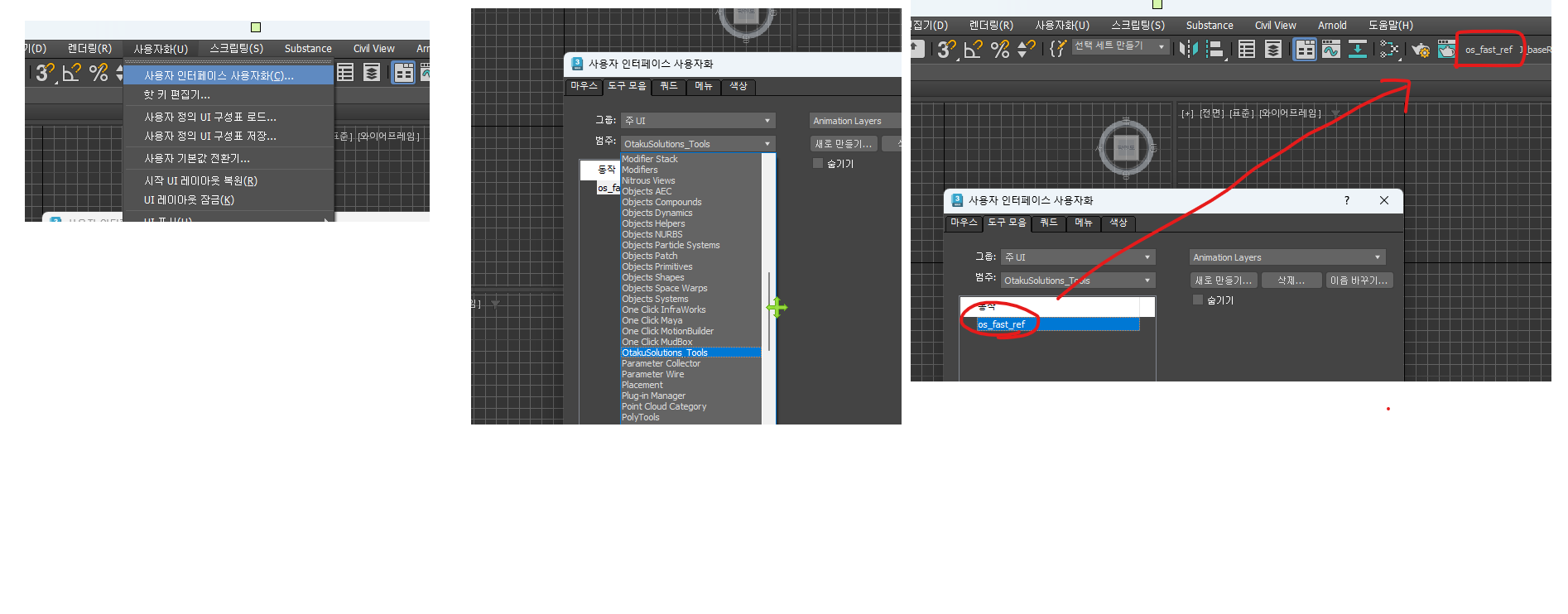
Registering in the Self Window
Customize UI → 'OtakuSolutions_Tools' → Fast-Ref
Refer to the image above to register the macro key in the Self window.
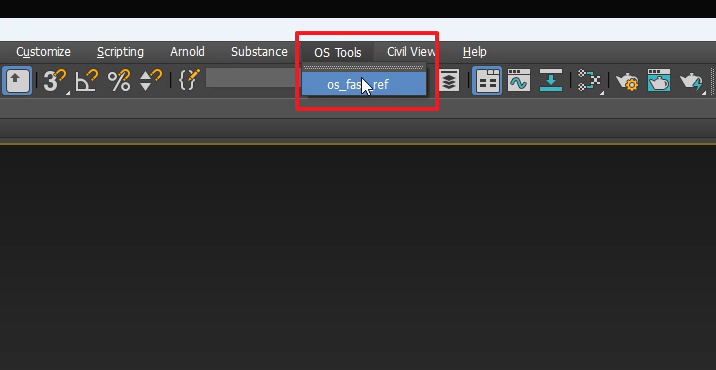
Accessing via Menu (2025+)
In 3dsMax 2025 and later, an OS Tools menu appears and can also be used to access the plugin.