BipedPlus
Ep.9 — Ani Utils · Animation Assist Tools
Download Markdown Download with Images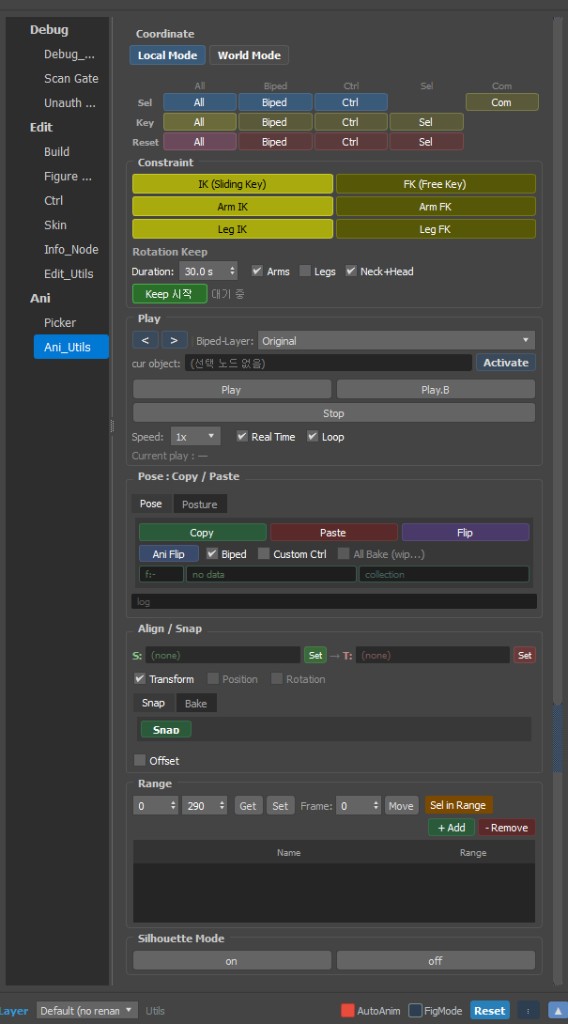
Overview
The Ani Utils tab is a collection of assist tools used when animating.
It is often kept side by side with the Picker.
Prerequisites
- Build complete, Figure Mode OFF
- Rigging Info generation checked during Build (Ep.1)
Feature Breakdown
Local / World — Which Space to Move In
| Mode | Meaning |
|---|---|
| Local | Rotate/move relative to the parent (shoulder, wrist, etc.) |
| World | Relative to the entire scene (world) |
| - To bend an arm relative to the torso, use Local; to rotate it toward a direction in space, use World — each team has its own habits per part. |
Selection · Key · Reset
| Button | What It Does |
|---|---|
| Selection | Select an entire part group (Left Arm, Spine, etc.) at once |
| Key | Set a keyframe on selected objects |
| Reset All | Return the entire rig to the default pose |
| Reset Selection | Return only selected items to default pose (Ep.14) |
| - When custom controllers are registered in Rigging Info in Ep.13, they are included in Reset All as well. |
Mirror Pose — Copy Left/Right Pose
- Create a pose on one side (arm or leg).
- Copy (select direction: Left → Right, etc.).
- Mirror or Flip Copy — pastes the mirrored pose onto the opposite side.
- For custom parts like twintails, mirroring works properly only after registering Mirror Factor in Ep.13.
Slide Key · Free Key
- Slide Key — slide key timing and values (assists Max timeline).
- Free Key — unlock only specific axes for keying (to match team workflow).
Scale
- Keys the scale of selected controllers — connects to Squash & Stretch animation.
→ If skin tears, check whether the bone has Stretch OFF from Ep.7.
Range · Play
- Range — specify a playback range.
- Play — preview that range only.
Pose · Posture Copy
- Pose — save and paste the current frame's pose.
- Posture — Biped Posture format (familiar to Max Biped users).
Transform Snap · Bake
- Snap — match position/rotation to another controller or object.
- Bake — bake constraint results into keys and transforms — may be needed when exporting to a game engine.
Prop Snap — Attaching Weapons / Props
- Quickly align a Prop (weapon) controller to the hand or Prop bone position.
- Useful for setting an equip pose without IK.
Recommended Workflow (Example)
Select Spine / Arm via Picker
  → Pose in Local space
  → Key
  → Mirror Copy to opposite side
  → Check range with Play
  → Snap weapon with Prop Snap
Notes
- Reset All reverts registered custom controllers as well — confirm intent.
- Mixing Local and World can make key values feel off.
- Excessive Scale keys on bones with Stretch enabled → skin problems (Ep.7).