Ep.6 — Skin Function · Weight Work Preparation & Data Management
Download Markdown Download with Images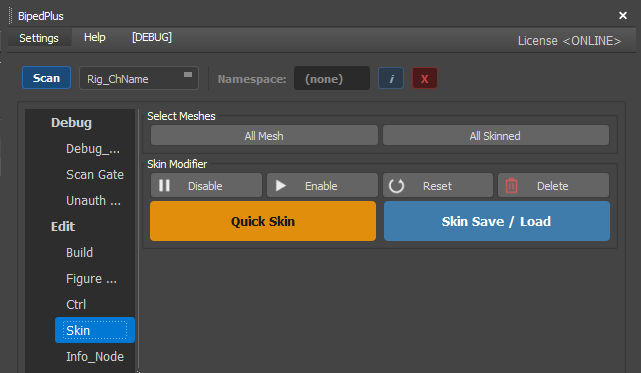
Overview
The Skin tab is not a screen for painting weights — it is a management screen for bulk selecting, disabling, backing up, and restoring already-skinned meshes.
Skin Modifier = The skin modifier applied to a mesh in Max.
SkinLayer Studio = The layer-based skin tool from Ep.5 (similar name, but a different thing).
Prerequisites
- BipedPlus Build has created
Skin_*bones - Quick Skin: meshes to skin for the first time (or add missing bones)
- Save / Load · Disable, etc.: meshes that already have a Skin Modifier (SkinLayer Studio WIP is fine)
Skin Tab — Button by Button
All Mesh
- Selects all meshes in the scene that can be skin targets at once.
- Convenient when there are multiple pieces of body, clothing, and accessories.
All Skinned
- Selects only meshes that already have a Skin Modifier attached.
- Difference from All Mesh: meshes not yet skinned are excluded.
Enable / Disable Skin
| Button | What It Does |
|---|---|
| Disable | Temporarily turns off all skin modifiers — when you want to see only the rig and mesh |
| Enable | Turns them back on |
When to use: If you changed a pose and the mesh looks strangely stretched → Disable shows only the raw mesh, making it easy to tell whether it's a skin issue.
Reset
- Test after returning to the default pose (T-Pose, etc.).
- With skin enabled, moving only bones can make the mesh look stretched — this is normal behavior.
- Reset — restores skin and pose-related data to the initial state.
Delete Skin
- Deletes weights and the Skin Modifier from selected meshes.
- All Skin Delete — deletes everything with skin attached (difficult to undo).
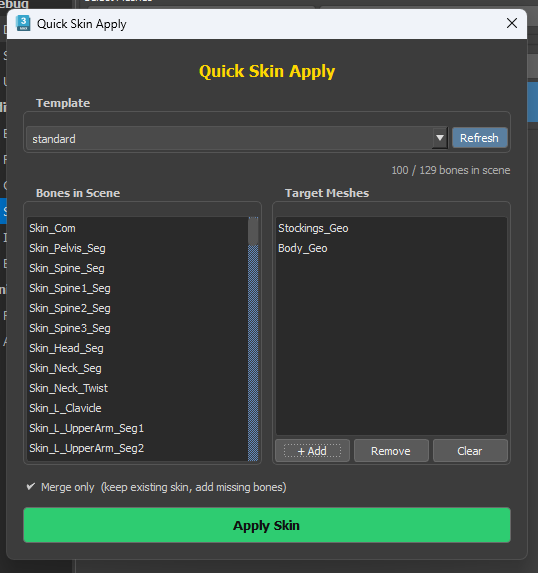
Quick Skin button → Quick Skin Apply dialog
The orange Quick Skin button opens Quick Skin Apply.
It applies Skin using the intersection of the template Skin_* bone list and bones that exist in the scene.
| UI | What it does |
|---|---|
| Template | Bone template (currently standard — Twist/Seg/fingers superset). Missing scene bones are omitted. |
| Refresh | Re-scan the scene; update Bones list and N / Total bones in scene |
| Bones in Scene | Names that exist in both template and scene. Apply uses this list. |
| Target Meshes | Select meshes in the viewport, then + Add / Remove / Clear |
| Merge only | On: keep existing skin, add missing bones only. Off: force new Skin apply. |
| Apply Skin | Apply those bones to targets (Undo: Quick Skin Apply) |
Recommended order (Quick Skin)
Finish Build (Skin_* present)
  → select meshes → Quick Skin → + Add
  → Refresh and check bone count
  → (optional) Merge only
  → Apply Skin
  → refine weights in SkinLayer Studio, etc.
If bones show
0 / N, check Scan/Build/Skin_*names first. Apply stays disabled until scene bones are found.
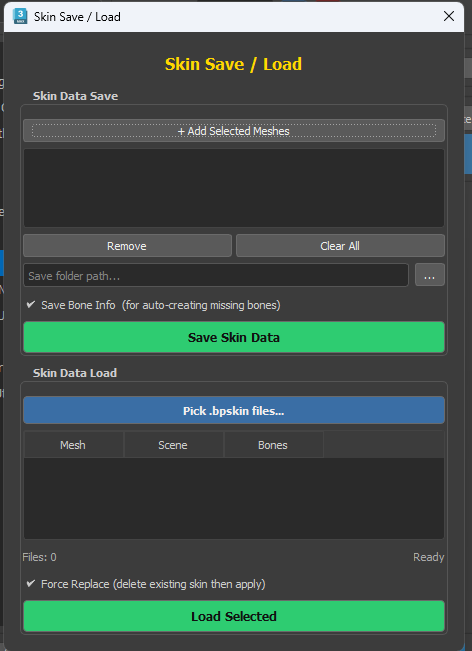
Skin Save / Load button → Skin Save / Load dialog
The blue Skin Save / Load button opens backup/restore. File type: .bpskin.
Skin Data Save
| UI | What it does |
|---|---|
| + Add Selected Meshes | Add already-skinned selected meshes to the list |
| Remove / Clear All | Remove from list |
| Folder path · … | Folder for .bpskin files |
| Save Bone Info | Write _all_bone_info.json (transforms/hierarchy) for auto-creating missing bones on Load |
| Save Skin Data | Save weights per listed mesh |
Skin Data Load
| UI | What it does |
|---|---|
| Pick .bpskin files... | Multi-select .bpskin → fill match table |
| Table | Mesh name / in scene (found/miss) / bones found/total |
| Force Replace | Delete existing Skin, then apply |
| Load Selected | Load the listed files |
If bones are missing, a follow-up dialog appears:
- List: missing bone names + saved Parent
- Hierarchy mode: Parent / World / Child Group
- Create — rebuild bones from
_all_bone_info.jsonthen load (Save Bone Info required when saving) - Skip and continue — load with bones that exist
- Cancel — abort load
Recommended order (Save / Load)
Save Skin Data during work (+ Save Bone Info recommended)
  → on mistake / scene swap: Pick .bpskin → Load Selected
  → always Save before Delete Skin
Rigging Info (Brief)
- You can access the Rigging Info panel via a nearby button on the Skin tab or a separate button.
- Mirror, reset, and custom controllers are linked to registration and Update here (Ep.10·13).
Notes
- Always Save Skin Data before Delete All Skin (prefer Save Bone Info ON too).
- Disable/Enable alone does not erase weight values. Reset and Delete change the data.
- To Create missing bones on Load,
_all_bone_info.jsonmust sit in the same folder. - Do Quick Skin / weight work after Build/Figure is finalized (
Skin_*names/counts stable).