BipedPlus
Ep.3 — Figure Mode 2 · Height & Joint Counts
Download Markdown Download with Images
Overview
In the Figure Mode tab you can change the character's height while keeping proportions, and change the joint counts of the Spine, arms (Twist), Knee, and Props.
Even after rigging — for example, "I made 3 fingers but want 5" or "I want more Spine bones" — you can change it here without rebuilding.
| Covered | Details |
|---|---|
| Height | Change height while keeping proportions |
| Spine · Arms | Pick the count on the body map |
| Knee · Leg Links | Corrective / Double Knee, number of leg links |
| Props | Add or remove Prop bones |
Prerequisites
1. Height — Changing Height While Keeping Proportions
- Enter the target height in Height and click Apply (e.g., 50).
- BipedPlus's rigging nodes shrink or grow together while keeping their proportions.
- Controller sizes are adjusted to the new height as well, so it takes a moment.
- When it finishes, turn on the controllers and confirm their size changed too.
2. Changing the Spine Count
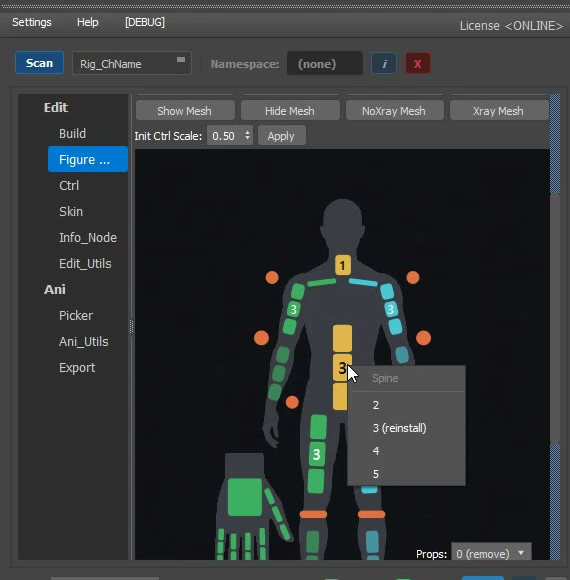
- On the body map, click the Spine number and pick the count you want (e.g., 3 → 5).
The current count is marked (reinstall) in the list. - The Spine nodes are rebuilt and updated, so it takes a moment.
- Confirm the Spine changed and the rigging nodes were created without conflicts.
3. Changing the Arm (Twist) Count
- Click the number on the arm and pick the count the same way as the Spine (e.g., 3 → 5).
- Wait until the update finishes.
- Confirm that one controller was created per segment.
4. Knee · Leg Links
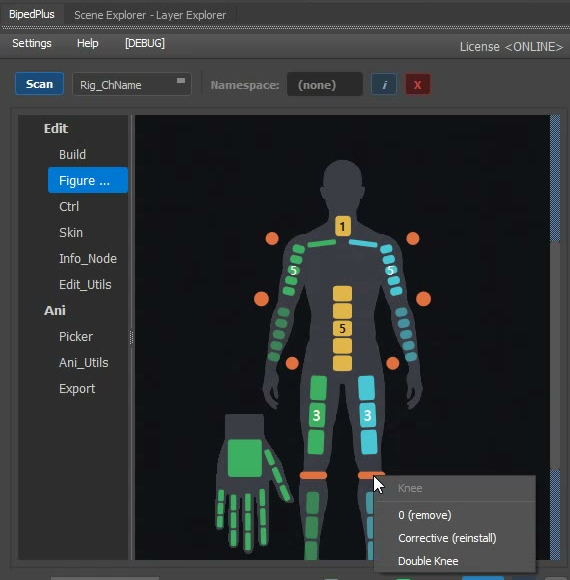
- Click the knee to choose 0 (remove) / Corrective / Double Knee. If there is no Corrective yet, add it here.
- Click the + below the leg to change the number of Leg Links (3 / 4).
- More on Double Knee: Ep.21
5. Props
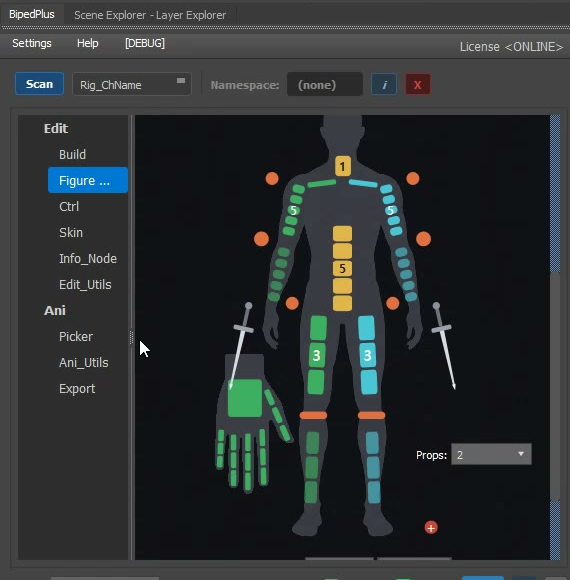
- Pick the number you want in the Props list (e.g., 2).
- Select the created Prop and confirm its controller was built on the Biped Prop.
- Skin bones and Prop bones are created along with the controllers.
- Remove them with 0 (remove) if not needed.
Notes
- Changing counts or applying Height rebuilds nodes, so wait until it finishes.
- You don't need to touch the System group.
- If joint positions shift after a change, realign them as in Ep.2 and run Update Rig from Init.
Related
- Ep.1 — Build Tab · Ep.2 — Figure Mode 1
- Elbow · Hip Corrective: Ep.22