BipedPlus
FAQ.1 — Permission denied / scripts write access on install
Download Markdown Download with ImagesOverview
When .mzp install fails with Permission denied / Errno 13,
grant Windows write permission to the 3ds Max scripts folder.
If it still fails after fixing permissions → FAQ.2 — Manual install
Example error
Installation failed: [Errno 13] Permission denied:
'...\3dsMax\2025 - 64bit\ENU\scripts\startup\os_bipedPlus_menu.ms'
0. Confirm the exact scripts path in 3ds Max (required)
Do not guess paths like %LOCALAPPDATA%\....
Open the folder from the result of a script run in that Max version.
- Launch the same Max version that failed
F11→ MAXScript Listener- Run:
format "userScripts = %\n" (getDir #userScripts)
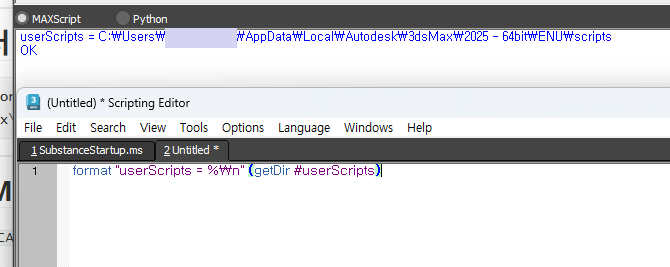
Paste the script into the editor and run it. Listener should show
userScripts = ...\ENU\scriptsandOK.
- Note the
userScriptspath exactly as printed. Example:
userScripts = C:\Users\username\AppData\Local\Autodesk\3dsMax\2025 - 64bit\ENU\scripts\
This is the
scriptsfolder you will grant write access to.
Username and version numbers differ per PC — use only the Listener result.
- Note the path, then quit all Max instances
- In Task Manager, end any leftover
3dsmax.exe
1. Open scripts folder Properties
- Paste the
userScriptspath from step 0 into Explorer’s address bar
(a trailing\is fine) - Press Enter to open that
scriptsfolder - Right-click empty space or the folder → Properties
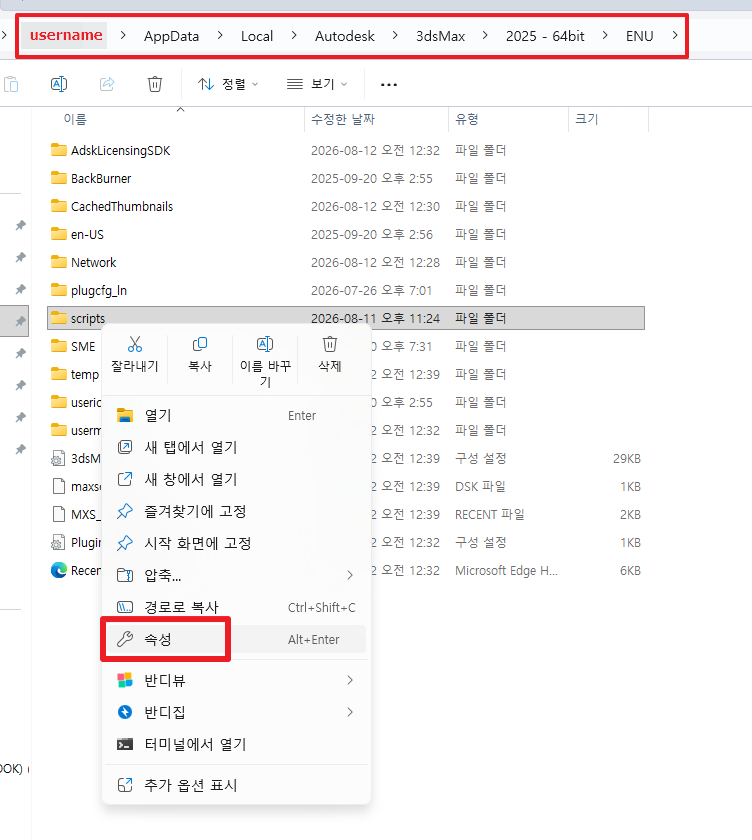
Grant permission on the
scriptsfolder (do not stop atstartupalone).
2. Check your account on the Security tab
- Open the Security tab
- Select your currently signed-in Windows user
- Do not look only at
Administrators— select your own account - Under Allow, confirm Full control / Modify / Write
- If missing or incomplete, click Edit
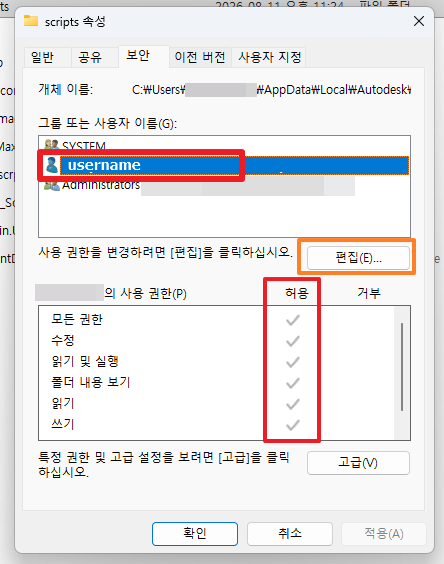
3. Allow permissions and confirm
- Select your account again
- Check Allow → Full control
- Minimum: Modify, Write
- OK → Apply → OK
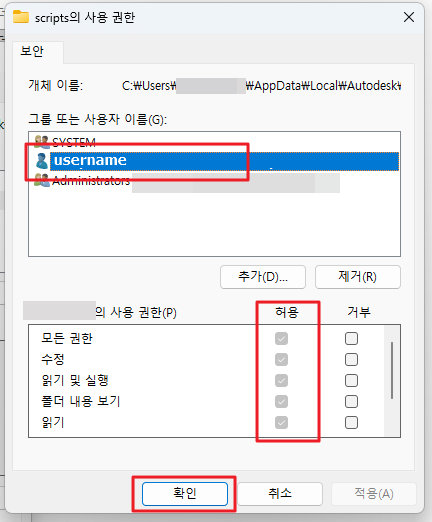
If your account is not in the list:
Add → enter username → Check Names → allow Full control
4. Remove startup files, then reinstall
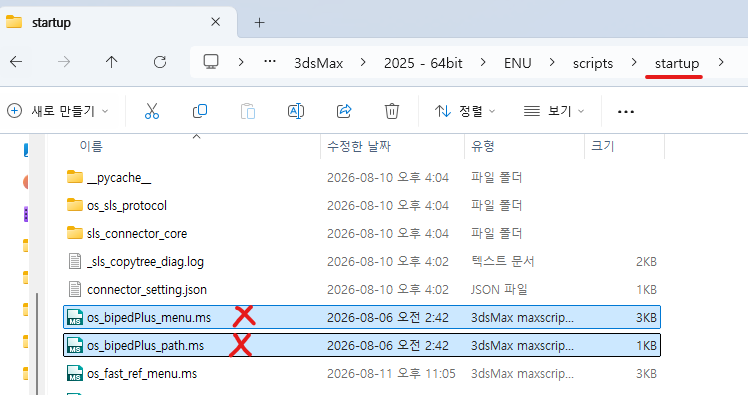
- Go into startup inside the userScripts folder above
- If these files exist, delete them (files marked with a red X):
- os_bipedPlus_menu.ms
- os_bipedPlus_path.ms
- Fully quit 3ds Max, then restart it.
- After restart, drag-and-drop the matching .mzp to install.
(No manual file copy needed — just reinstall with the .mzp.)
If it still fails
→ Continue with FAQ.2 — Manual install
OtakuSolutions