SkinLayerStudio
F05 — Skin Archive
Download Markdown Download with ImagesSkinLayer Studio 1.3.x Standalone UI reference.
Practice: EP00–EP12 · Features: F01–F17 (order 50+).Describes Skin Archive (mesh archive), the viewport left drawer, and its right-click menu.
How to open: UI layout guide — drawer handles (click the vertical bar between Layers ↔ Viewport)
Panel at a glance
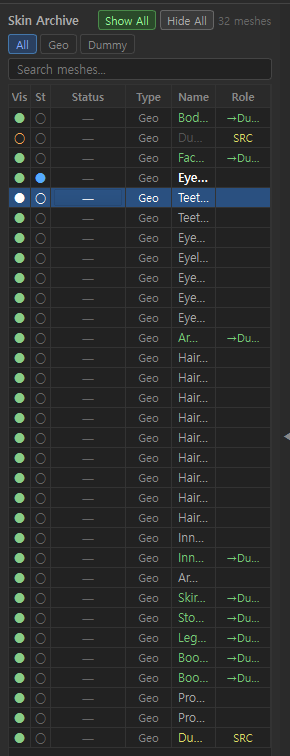
| Item | Description |
|---|---|
| Skin Archive | Archive to view, hide, and filter meshes loaded in the project |
| Show All | Show all meshes in the viewport |
| Hide All | Hide all meshes in the viewport |
| N meshes | Archive mesh count (e.g. 32 meshes) |
| All / Geo / Dummy | Type filter (All=all, Geo=geometry, Dummy=dummy) |
| Search meshes... | Search by name |
The list can look similar to Skin Desk (lower-left workbench), but Archive focuses on visibility · type · archive management, while Desk focuses on active work · Sync Role.
Columns
| Column | Meaning |
|---|---|
| Vis | Viewport visibility. Green dot=shown, empty/other=hidden · dummy, etc. |
| St | Active/selection hint (blue dot, etc.) |
| Status | DCC connect · push status (— = N/A / default) |
| Type | Geo / Dummy |
| Name | Mesh name (color hints Sync role) |
| Role | Sync role — SRC(yellow)=Source, →Du…(green)=linked to Dummy, etc. |
Name · Role color hints
| Display | Meaning |
|---|---|
Green name + →Du… |
Sync Target (linked to Dummy Source) |
| Yellow SRC | Sync Source |
| White name | Normal Geo |
| Gray/purple-tone Dummy | Type=Dummy |
Right-click menu
Right-click a mesh row for archive-specific actions.
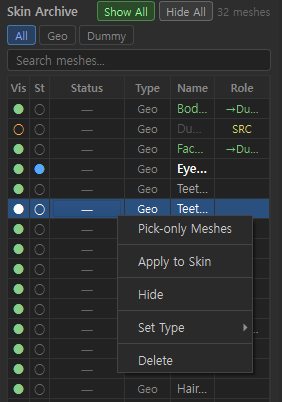
| Menu | Action |
|---|---|
| Pick-only Meshes | Re-Pick selected meshes from DCC for latest geometry only (keeps bones/weights; fails if vert count mismatches) |
| Apply to Skin | Push selected mesh weights · layers to DCC skin |
| Hide / Show | Hide/show selected mesh in viewport (label switches by state) |
| Set Type > | Change type to Geo / Dummy |
| Delete | Remove mesh from archive (project) |
With multi-select, counts may appear on menu items. Example: Apply to Skin (3).
Recommended use
1) Click left drawer handle → open Skin Archive
2) Narrow the list with All / Geo / Dummy or search
3) Click Vis dots or use Show All / Hide All to tidy display
4) Right-click → Pick-only / Apply to Skin / Set Type
5) For Sync relationships, see Skin Desk · Sync Map guide
Skin Archive ↔ Skin Desk
| Skin Archive | Skin Desk | |
|---|---|---|
| Location | Viewport left drawer | Fixed lower-left panel |
| Focus | Visibility · type · archive | Active mesh · Sync Role · Map |
| Sync setup | Mostly Role display | Set as Sync Source/Target |
| Apply | Right-click Apply to Skin | Linked with top orange Apply to Skin |
Related docs
| Doc | Contents |
|---|---|
| UI layout guide | Open Archive with drawer handle |
| Skin Desk · Sync Map | Sync Source/Target · Map |
| Layers panel details | Layer editing |
Images: skin_archive_overview.png · skin_archive_context_menu.png
Written: 2026-07-26