Ep.15 — FBX · JSON Workaround (When Connection Fails)
Download Markdown Download with Images1. Why this episode exists
SkinLayer Studio is a Cross DCC tool. It talks to the DCC over TCP.
We fixed connection reports during Early Access, and it is usually stable now. PC setups still differ, so the same kind of failure can come back.
The simplest UX is: select in the DCC, then Pick / Get All in SLS. TCP will keep getting more robust, but a change in environment or settings can still drop the link mid-work.
A backup path was planned from the start. This episode is a temporary workaround for urgent work. It does not replace the normal Pick · Apply to Skin flow.
UI detail: F17 Connector · F13 FBX · F12 JSON
2. First — Connector Reboot
SLS Re may still fail to connect.
Open the connector per DCC:
| DCC | Where |
|---|---|
| 3ds Max | OS Tools → SkinLayer Studio Connector |
| Maya | OS Tools → Connector |
| Blender | Right add-on panel (N → SLS tab) |
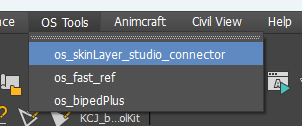
Open the window and press Reboot once. Opening it re-enables TCP. A dead link can come back just from opening the window.
If it still fails, use the FBX · JSON path below.
Install: EP01. Missing menu: FAQ.2.
3. Export FBX from the DCC
Select the mesh and skin bones only. If they are mixed with biped/controllers, split modeling / skin bones.
Put the date in the file name.
3ds Max FBX options from the video:
| Keep | Can skip |
|---|---|
| Mesh · skin bones | Skin · Morphs (skinning only) |
| Bake Animation (Test Ani is fine) | Camera · Lighting |
Advanced matters.
- Unity Axis Conversion: Auto
- SLS needs to know whether the FBX came from 3ds Max / Maya / Blender
- 3ds Max: export Z-up. Maya: Y-up
- A slightly wrong axis is OK — SLS can fix it. Defaults are fine
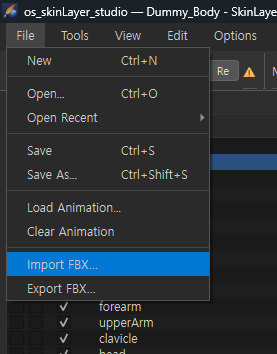
4. Import FBX in SLS = Pick
File → Import FBX…
After you import the FBX, you are in the same state as Pick / Pick All. Start skinning.
If Test Ani was in the FBX, it shows on the timeline.
Example: Hide All, turn on Body, work layers.
Dialog options (axis · units): F13.
5. After work — put it back with JSON
Without a connection, right-click Apply to Skin will not run. You still need the weights in the DCC.
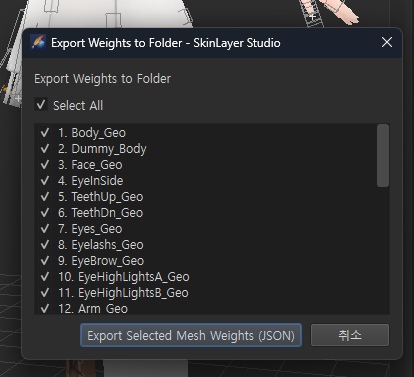
In SLS:
Tools → Export Weights to Folder...
Select all meshes whose weights you need and save to a temp folder. One .json per mesh.
Then the DCC. The video uses 3ds Max — no weights, so the biped moves and the mesh does not.
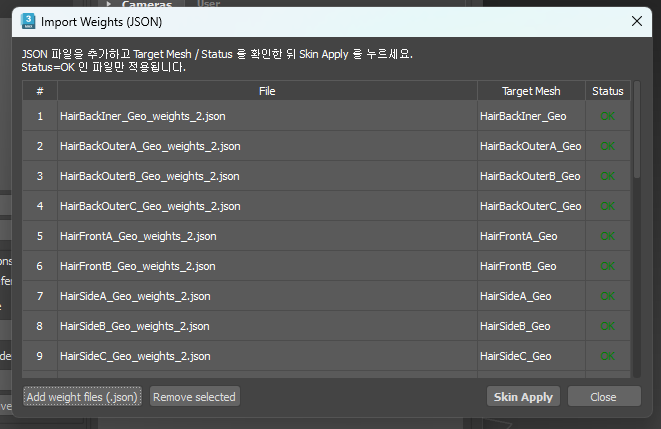
- OS Tools → SkinLayer Studio Connector
- Import Weights (*.json) (spoken as Import Weight)
- Add JSON / Add weight files (.json) —
Ctrl+Afor everything you just exported, or only what you need - Mesh names must match the Target exactly
- Skin Apply
It takes a moment. When it finishes you get a “skinning defined” message, and the SLS weights are in place.
Maya · Blender use the same idea; only the connector UI changes. → F17
6. This is a workaround
Use it when you must finish now and only the connection is down.
Meanwhile open Help and write Contact Email. Depending on country that is KakaoTalk · WeChat · email. We will find the cause so Pick · Apply work again. That can take time, so keep working on the path above until then.
Contact: contact@otakusolutions.com
One-line flow
No connection
  → Open Connector, Reboot
  → If still down
       DCC: mesh + skin bones → Export FBX
       SLS: File → Import FBX…  (= Pick)
       Skin
       SLS: Tools → Export Weights to Folder...
       DCC Connector: Import Weights → Add JSON → Skin Apply
  → Report the cause via Help