F15 — Options · Settings
Download Markdown Download with ImagesSkinLayer Studio 1.3.x Standalone UI reference.
Practice: EP00–EP12 · Features: F01–F17 (order 50+).Menu-bar Options — app-wide settings (nav · hotkeys · connectors · data · Smooth algorithms) and language.
Menu
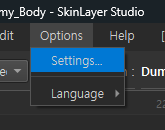
| Item | Description |
|---|---|
| Settings... | Open Options dialog (tabs below) |
| Language ▸ | Switch UI language (한국어 / English / 日本語 / 中文, etc.) |
Options → Settings...
Settings tabs
| Tab | Contents |
|---|---|
| Viewport | Navigation · coordinate system |
| Hotkeys | Hotkey presets · editing |
| Connectors | 3ds Max connector install status |
| Data | User data folder |
| Smooth | Smooth/Flood algorithms |
Bottom OK = apply · Cancel = cancel.
Viewport
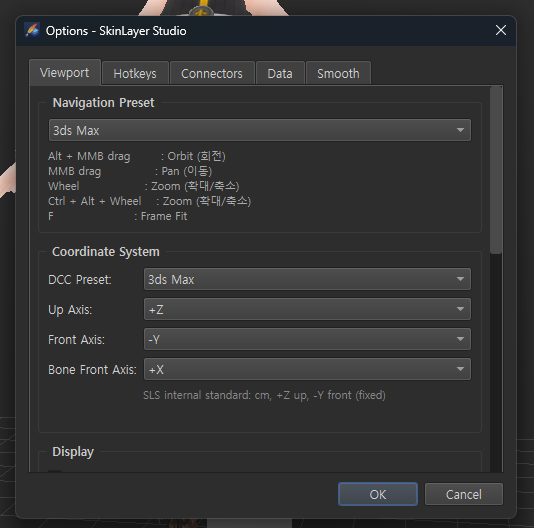
Navigation Preset
Camera controls matched to a DCC. Example: 3ds Max
| Input (Max preset example) | Action |
|---|---|
| Alt + MMB drag | Orbit |
| MMB drag | Pan |
| Wheel / Ctrl+Alt+Wheel | Zoom |
| F | Frame Fit |
Coordinate System
| Item | Description |
|---|---|
| DCC Preset | 3ds Max, etc. — match Up/Front axes to the preset |
| Up / Front / Bone Front Axis | Manual axes (becomes Custom when changed) |
| Note | SLS internal basis: cm, +Z up, -Y front (fixed) |
If axes disagree with DCC, FBX · anim loads can distort — match the Preset before work.
Hotkeys
| UI | Description |
|---|---|
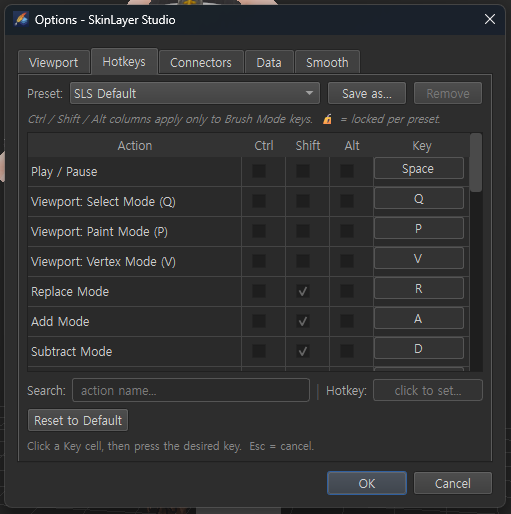
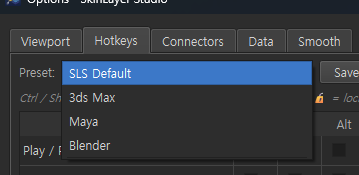
| Preset | SLS Default / 3ds Max / Maya / Blender |
| Save as... / Remove | Save · delete user presets |
| Table | Action · Ctrl/Shift/Alt · Key |
| Search | Search action names |
| Hotkey: click to set... | Click a Key cell then press a key (Esc=cancel) |
| Reset to Default | Restore defaults |
Examples: Play/Pause=Space, Select/Paint/Vertex=Q/P/V, brush Replace/Add/Sub=Shift+R/A/D
A note explains Ctrl/Shift/Alt columns apply only to brush mode keys.
Connectors
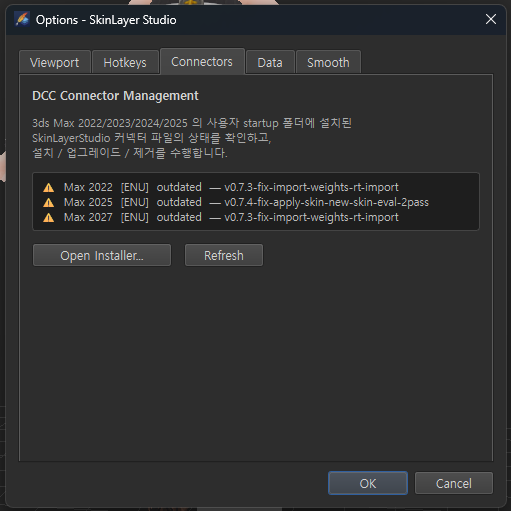
Shows SLS connector status installed in 3ds Max user startup (2022+, etc.).
| UI | Description |
|---|---|
| Status list | Version · outdated, etc. |
| Open Installer... | Install / upgrade / remove connector |
| Refresh | Rescan status |
If Pick / Apply to Skin fails, check whether the connector is outdated here and install/upgrade.
→ Practice EP02 Install
Data
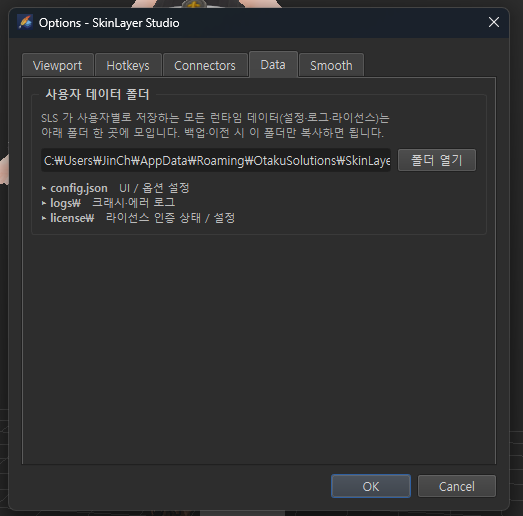
| Item | Description |
|---|---|
| User data folder | Path for settings · logs · license |
| Open folder | Open in Explorer |
config.json |
UI / Options settings |
logs\ |
Crash · error logs |
license\ |
License state |
For backup · PC move, copy this folder alone.
Path example: %AppData%\OtakuSolutions\SkinLayerStudio (may vary by environment)
Smooth
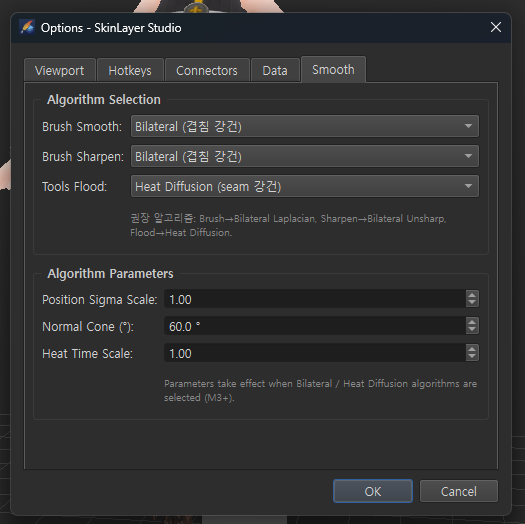
Algorithms and parameters used by brush Smooth / Sharpen / Flood.
Algorithm Selection (examples)
| Item | Recommended example |
|---|---|
| Brush Smooth | Bilateral (robust to overlap) |
| Brush Sharpen | Bilateral |
| Tools Flood | Heat Diffusion (seam-robust) |
Recommended: Brush→Bilateral Laplacian · Sharpen→Bilateral Unsharp · Flood→Heat Diffusion.
Algorithm Parameters
| Parameter | Description |
|---|---|
| Position Sigma Scale | Bilateral spatial influence scale |
| Normal Cone (°) | Normal angle limit — reduce bleed to opposite faces |
| Heat Time Scale | Heat Diffusion spread strength |
Parameters apply when Bilateral / Heat Diffusion are selected (M3+).
Related docs
| Doc | Contents |
|---|---|
| Viewport menu bar | Persp · Display · mode hotkeys |
| Tools panel | Set Weights · Smooth Layer |
| Export JSON | Max connector Import |
| Practice EP02 Install | Connector · license |
Images: options_menu.png · options_viewport_tab.png · options_hotkeys_tab.png · options_hotkeys_presets.png · options_connectors_tab.png · options_data_tab.png · options_smooth_tab.png
Written: 2026-07-26