F09 — Viewport Menu Bar
Download Markdown Download with ImagesSkinLayer Studio 1.3.x Standalone UI reference.
Practice: EP00–EP12 · Features: F01–F17 (order 50+).3D Viewport top mode bar — work mode · camera · display · shading · lighting.
Overall placement: UI layout #6 · #7.
At a glance

| Zone | UI | Role |
|---|---|---|
| Left | Select Bone / Paint / Vertex | Viewport work modes |
| Overlay | Mesh name · Verts · Bones · Layer · Selected | Current status summary |
| Right | Persp ▾ · Display ▾ · Textured ▾ · Unlit ▾ | Camera · display · shader · lighting |
| Far right | Sel: N · ViewCube | Selection count · orientation |
Weight colors (heatmap) are also adjusted in Tools → Scene.
→ Tools panel — Scene
Work modes
| Button | Hotkey | Description |
|---|---|---|
| Select Bone | Q | Select bones in viewport · manipulate with gizmo (W/E/R). Paint/vertex tools OFF |
| Paint | P | Brush-paint weights (or Mask) — pick a bone in Influences first |
| Vertex | V | Vertex select — □ Box / ⊙ Lasso tools appear on the mode bar |
For painting, the usual combo is Paint + an Influences bone (or [Mask]).
Persp ▾ — camera / Frame Fit
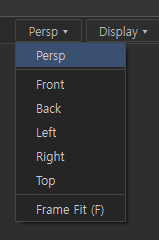
| Item | Description |
|---|---|
| Persp | Perspective view |
| Front / Back / Left / Right / Top | Orthographic views |
| Frame Fit (F) | Frame camera to selection (or scene) — hotkey F |
You can also change orientation with the ViewCube (Front, etc.).
Display ▾ — display options
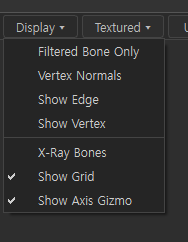
| Option | Description |
|---|---|
| Filtered Bone Only | Show only bones visible (filtered) in Influences in the viewport |
| Vertex Normals | Show vertex normals |
| Show Edge | Mesh edge (wire) overlay |
| Show Vertex | Show vertex points |
| X-Ray Bones | Show bones through the mesh |
| Show Grid | Ground grid |
| Show Axis Gizmo | Axis gizmo |
Checked = ON. For weight checks, X-Ray Bones · Show Edge are often enabled.
Textured ▾ — shading modes
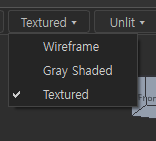
| Mode | Description |
|---|---|
| Wireframe | Wire only |
| Gray Shaded | Gray shading (check form) |
| Textured | Show textures (when texture bindings exist on slots) |
The button label switches to the current mode (Textured ▾, etc.).
Unlit ▾ — lighting
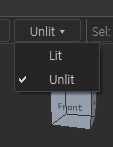
| Mode | Description |
|---|---|
| Lit | Lambert lighting ON — depth |
| Unlit | Lighting OFF — heatmap · texture colors as-is (recommended default while painting) |
If shading hides weight colors, use Unlit.
Overlay info (example)
Dummy_Body · Verts: 4065 · Bones: 87 · Layer: Base · Selected: 0
Shows active mesh · vertex/bone counts · active layer · selection count at a glance.
Recommended while skinning
Paint mode + Unlit + (as needed) X-Ray Bones / Show Edge
→ Pick bone in Influences → brush paint
→ F for Frame Fit, Persp/Front to check angles
→ Filtered Bone Only to see Used bones only (tied to Influences filter)
Related docs
| Doc | Contents |
|---|---|
| UI layout guide | Viewport #6 · #7 |
| Influences details | Paint target bones · Used |
| Tools panel — Set Weights / Scene | Brush · heatmap colors |
| Texture Manager | Texture paths · Collect |
Images: viewport_mode_bar_overview.png · viewport_persp_menu.png · viewport_display_menu.png · viewport_shader_menu.png · viewport_lighting_menu.png
Written: 2026-07-26