F08 — Tools Panel (Brush / Options)
Download Markdown Download with ImagesSkinLayer Studio 1.3.x Standalone UI reference.
Practice: EP00–EP12 · Features: F01–F17 (order 50+).Right-side Brush / Options area (layout #9) — tabbed work panel.
Placement: see the UI layout guide.
Tabs:
| Tab | Role |
|---|---|
| Set Weights | Brush · Flood · Set Weights |
| Tools | Smooth Layer · Fallback · Residual |
| Mirror | Left/right (axis) weight mirror |
| Export | Skin Limit · Normalize/Prune · Remove Unused |
| Scene | Viewport colors · bone display |
| Attribute | Selected-target attributes (Geo / Dummy, etc.) |
What is this panel for?
Brush, Flood, Fallback, Mirror, Skin Limit — how you paint and clean weights.
(Not the menubar Tools menu; this is the lower-right panel.)
Set Weights
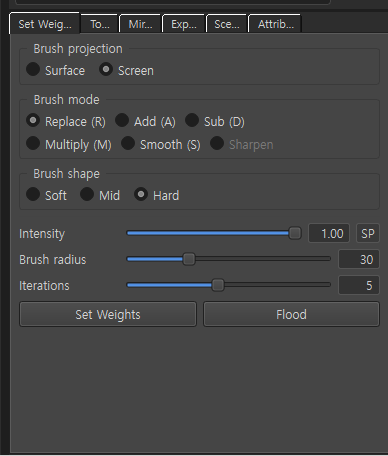
Default tab for painting. Pick a bone (or Mask) in Influences, then work in Paint mode.
Brush projection
| Option | Description |
|---|---|
| Surface | Brush along the mesh surface |
| Screen | Brush in screen (2D) space |
Brush mode
| Mode | Hotkey | Description |
|---|---|---|
| Replace | R | Replace selected bone weight with Intensity |
| Add | A | Add Intensity |
| Sub | D | Subtract Intensity |
| Multiply | M | Multiply (≥1 increase / below 1 decrease) |
| Smooth | S | Laplacian average of neighbors (Shift also temporary Smooth) |
| Sharpen | — | Disabled (future) |
Brush shape
| Option | Description |
|---|---|
| Soft / Mid / Hard | Edge falloff |
Sliders · buttons
| UI | Description |
|---|---|
| Intensity | Max strength per stroke (0.00–1.00) |
| SP | Eyedropper — sample Intensity from a vertex click (I key) |
| Brush radius | Brush size |
| Iterations | Iteration count for Smooth, etc. |
| Set Weights | Apply current settings to selected vertices |
| Flood | Batch-apply current mode · Intensity to selection/target range |
Flood example: Flood a Side layer at Replace 1.0, then Smooth the edge — common on skirts/flat areas.
Tools
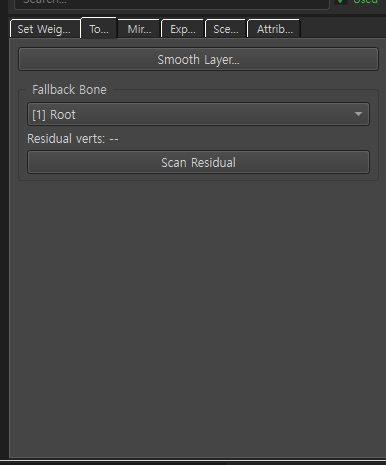
| UI | Description |
|---|---|
| Smooth Layer... | Smooth weights/mask for a whole layer (dialog) |
| Fallback Bone | Bone that receives residual weight when sum < 1.0 |
| Residual verts | Scan result (-- if not scanned) |
| Scan Residual | Scan vertices with sum < 1.0 |
Same Fallback as Influences [Fallback: …]. Change it in this Tools tab combo.
Mirror
Mirror tab vs Layers → Mirror Layer
- Mirror tab: mirror the active layer weights/mask (e.g. one arm → other).
- Layers Mirror Layer (mask + inf): duplicate a whole layer L/R.
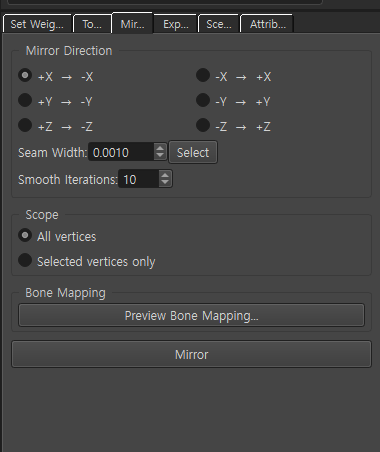
| Section | Description |
|---|---|
| Mirror Direction | Axis · direction such as +X→-X |
| Seam Width | Width near the mirror plane |
| Select | Select vertices with |axis| ≤ Seam Width (Vertex mode) |
| Smooth Iterations | Seam smooth count (0 = hard mirror) |
| Scope | All vertices / selected vertices only |
| Preview Bone Mapping... | Preview L/R bone mapping |
| Mirror | Run mirror with current settings |
Export
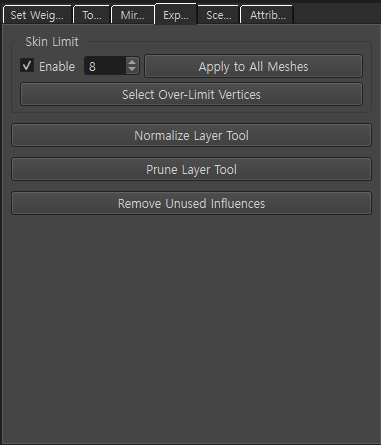
Despite the name Export, this tab is for cleanup · limits before DCC export. (Actual Apply to Skin is the top toolbar.)
Skin Limit
| UI | Description |
|---|---|
| Enable + number | Max bones per vertex (e.g. 8). Applied on Apply to Skin |
| Apply to All Meshes | Store the same limit on all meshes (inside SLS) |
| Select Over-Limit Vertices | Select vertices over the limit |
Layer cleanup
| Button | Description |
|---|---|
| Normalize Layer Tool | Normalize layer dialog |
| Prune Layer Tool | Remove weak weights under threshold |
| Remove Unused Influences | Remove bones that are 0 on all vertices from Skin |
Scene
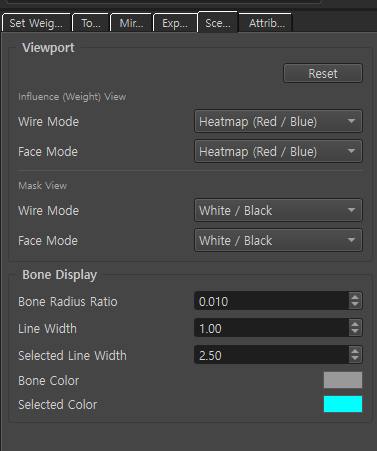
Changes viewport display only. Does not change weight values.
Viewport · Influence / Mask View
| Wire Mode | Face Mode | |
|---|---|---|
| Influence (Weight) | Wire weight color | Face weight color |
| Mask View | Wire mask color | Face mask color |
Common options e.g.: Heatmap (Red/Blue) · White/Black · Density (Influence)
Reset → restore Scene display defaults.
Bone Display
| UI | Description |
|---|---|
| Bone Radius Ratio | Bone display thickness ratio |
| Line Width | Normal bone line width |
| Selected Line Width | Selected bone line width |
| Bone Color / Selected Color | Bone · selected bone color |
Attribute
Contents change with the selection.
Normal mesh (Geo)
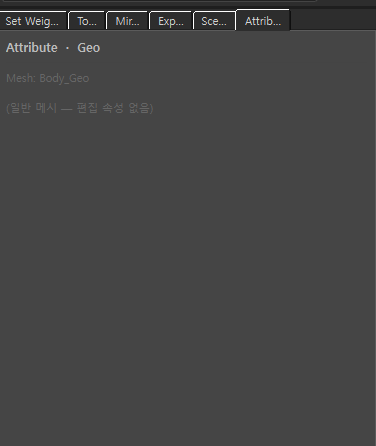
Mesh: … + (normal mesh — no editable attributes) — info only.
Dummy
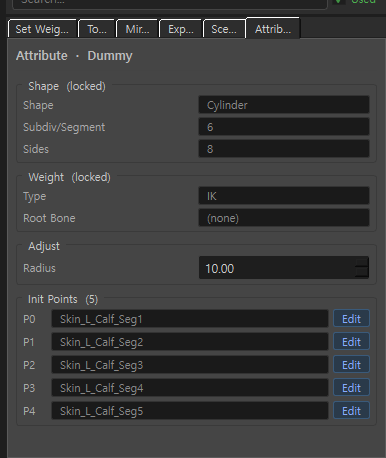
When a dummy created via Hierarchy Create Dummy, etc. is selected:
| Section | Description |
|---|---|
| Shape (locked) | Cylinder, etc. · Subdiv/Segment · Sides (read-only) |
| Weight (locked) | Type (e.g. IK) · Root Bone |
| Adjust | Editable params such as Radius |
| Init Points | P0… → bone name mapping · [Edit] to reassign bones |
Recommended flow
1) Set Weights — paint bone weights
2) Tools — check Fallback · Residual Scan · Smooth Layer if needed
3) Mirror — copy L/R symmetry
4) Export — Skin Limit · Normalize/Prune · Unused cleanup
5) Scene — adjust heatmap/bone display
6) Attribute — when Dummy selected, adjust Radius · Init Points
7) Top Apply to Skin
Related docs
| Doc | Contents |
|---|---|
| UI layout guide | Tools location (#9) |
| Influences details | Paint target bones · Mask |
| Bone Hierarchy details | Create Dummy · bone hierarchy |
| Create Dummy · Transfer Weights | Create dummy → Transfer |
| Layers panel details | Active layer |
Images: tools_set_weights.png · tools_tools_tab.png · tools_mirror.png · tools_export.png · tools_scene.png · tools_attribute_geo.png · tools_attribute_dummy.png
Written: 2026-07-26