F06 — Bone Hierarchy
Download Markdown Download with ImagesSkinLayer Studio 1.3.x Standalone UI reference.
Practice: EP00–EP12 · Features: F01–F17 (order 50+).Bone hierarchy panel in the viewport right drawer.
Open: UI layout — drawer handles (vertical bar between Viewport ↔ Influences)What is this panel for?
See which bones are bound to the active mesh, and quickly attach missing ones.
If Max added a finger bone and you Pick the whole mesh again, geometry and weights reload — heavy.
Use Hierarchy + Bone (or Master Hier → Add to Active Mesh) to attach just 1–2 bones.
Active Hier vs Master Hier
Switch between two views in the same panel.
Active Hier (active mesh)
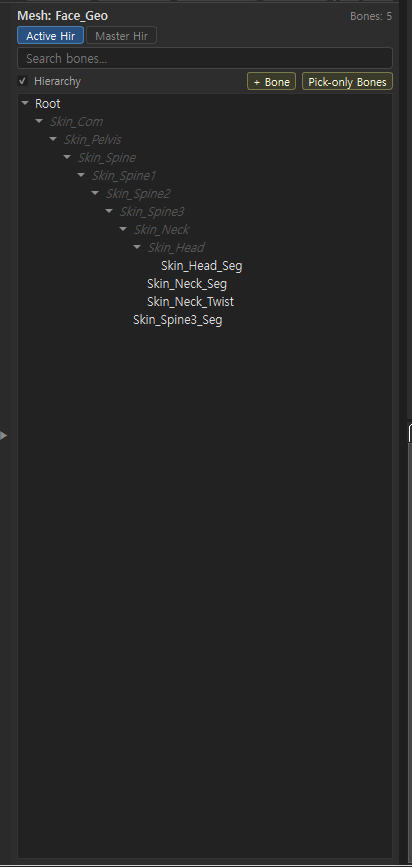
| Item | Description |
|---|---|
| Title | Current active mesh, e.g. Mesh: Face_Geo |
| Bones: N | Bones that directly influence this mesh (e.g. 5) |
| Tree | Active mesh bones + parent chain for display (borrows Master hierarchy for the tree) |
| Use | When you want to see/edit only “bones bound to this mesh now” |
Parents without direct weights may still appear; tooltips explain them.
Master Hier (full master skeleton)
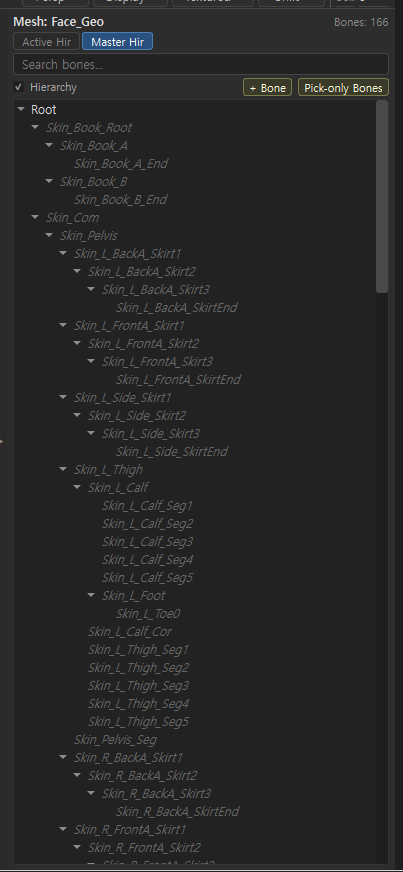
| Item | Description |
|---|---|
| Bones: N | Total bones in the scene/master skeleton (e.g. 166) |
| Tree | Full hierarchy from Root through full-body · clothing bones |
| Use | Pick bones not yet on the mesh, or inspect overall structure |
| Inactive bones | Bones not in current Skin are dimmed / tooltip Not active in current Skin |
One-line comparison
| Active Hier | Master Hier | |
|---|---|---|
| Scope | Active mesh influences | Full master skeleton |
| Bone count | Mesh-based (can be small) | Whole skeleton (can be large) |
| When | Painting · influence editing | Add bones · explore structure |
Shared UI
| UI | Action |
|---|---|
| Search bones... | Filter by bone name |
| Hierarchy check | Tree (hierarchy) display on/off |
| + Bone | Add bone to active mesh by name (below) |
| Pick-only Bones | Refresh bone transforms only from DCC (below) |
+ Bone — add bones to the active mesh
When to use
Bones were unavoidably added in the DCC, and SLS only needs those bones synced.
Pick reloads mesh · skin · weights — too heavy for 1–2 bones. Use + Bone instead.
New bones start at zero-weight; paint them later in Influences.
Press Hierarchy + Bone to open the dialog.
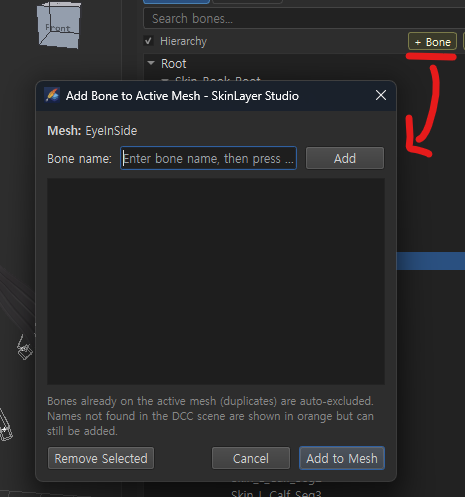
| Item | Description |
|---|---|
| Mesh: | Target = current active mesh (e.g. EyeInSide) |
| Bone name: | Type name then Add → stacks in the list below |
| List | Staging list of bones to add |
| Remove Selected | Remove from list |
| Cancel | Cancel |
| Add to Mesh | Register listed bones on the active mesh at zero-weight |
Notes:
- Bones already on the mesh (duplicates) are auto-excluded
- Names missing from the DCC scene show in orange but can still be added
This does not “create a new bone” in DCC; it attaches an influence to the active mesh by name. (Bone creation is on the DCC side.)
Pick-only Bones
When to use
You changed pose/bone transforms in Max but want Studio weights unchanged.
Pick-only refreshes transforms only — not mesh/weights.
| Item | Description |
|---|---|
| Action | Re-fetch transforms · matrices only from DCC by registered bone names |
| Leaves alone | Mesh geometry · weights |
| Use | After moving bones in DCC, align Studio gizmo/pose only |
Tooltip gist: Refresh DCC transforms · matrices by registered bone names (mesh/weights unchanged).
Right-click menu
Right-click a bone for:
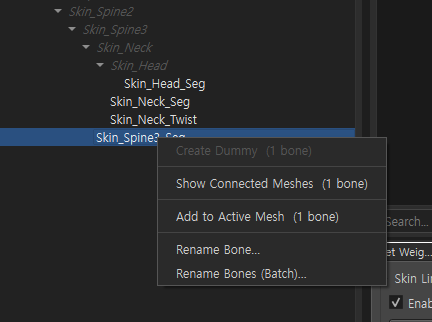
| Menu | Action |
|---|---|
| Create Dummy (N bone) | Create dummy from selected bones (2+ bones) → Details: Dummy · Transfer |
| Show Connected Meshes | List meshes connected to this bone |
| Add to Active Mesh | Add selected bone to current active mesh (zero-weight) |
| Rename Bone... | Rename single bone |
| Rename Bones (Batch)... | Batch rename multiple bones |
In Master Hier, pick a bone missing from the mesh then Add to Active Mesh to reflect it in Active Hier / Influences.
Recommended flow
1) Open Hierarchy with the right drawer
2) Check current mesh bones in Active Hier
3) Missing bones → find in Master Hier → right-click Add to Active Mesh
   or type names with + Bone → Add to Mesh
4) Sync DCC pose/matrices with Pick-only Bones
5) Work weights in Influences / Paint
Related docs
| Doc | Contents |
|---|---|
| UI layout guide | Open Hierarchy with drawer |
| Skin Archive details | Mesh archive |
| Skin Desk · Sync Map | Sync / Transfer |
| Create Dummy · Transfer Weights | Create dummy → Transfer practice |
Images: hierarchy_active_hier.png · hierarchy_master_hier.png · hierarchy_add_bone_dialog.png · hierarchy_context_menu.png
Written: 2026-07-26