FAQ.2 — 3ds Max connector does not auto-connect
Download Markdown Download with ImagesOverview
The connector files are installed correctly, and we have confirmed that a manual run works.
However, the connector may not start automatically when 3ds Max launches. Until the fix is ready, please connect with the steps below.
Run this once each time you start 3ds Max.
If OS Tools is missing entirely from the menu bar, this is not the page. Max may be skipping startup because Windows stamped a System mark on the folder.
https://docs.otakusolutions.com/guide/common/faq-max-os-tools-menu-missing?lang=en
When this happens
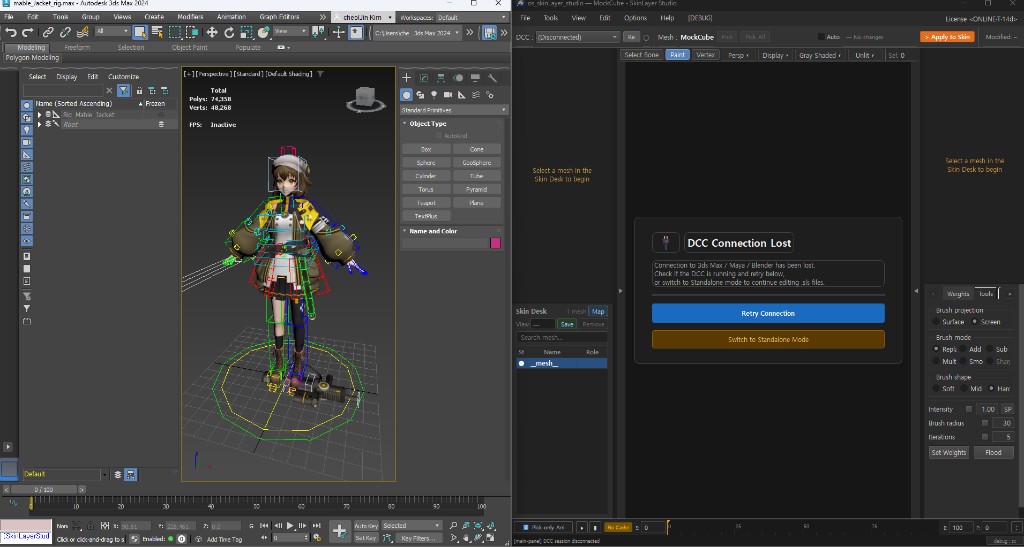
3ds Max is running, but clicking [Re] in SkinLayer Studio does not connect,
and the UI stays at DCC Connection Lost / (Disconnected).
Cause
This is not a bad install. The files are already in place.
If the Install Connector window shows up to date / All … are up to date, the connector is already installed. You do not need to install again.
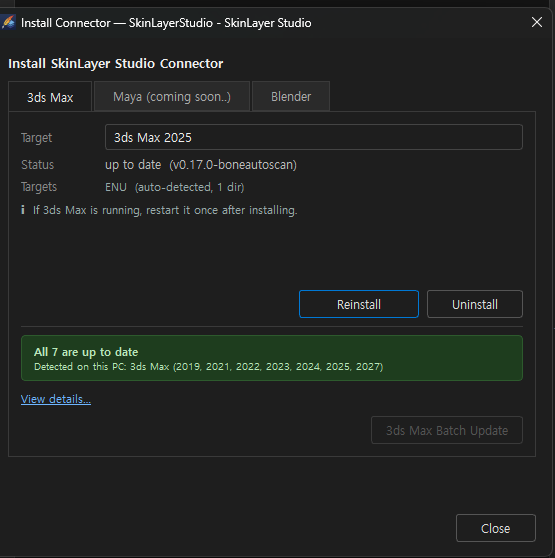
At startup, 3ds Max runs scripts in the startup folder from first to last.
If an earlier script errors, the SkinLayer connector later in the list may never run.
So Max can be open while the connector is still off, and [Re] has nothing to connect to.
We are fixing this so it starts automatically in all environments.
Until then, turn the connector on once inside Max with the steps below.
1. Open the script window
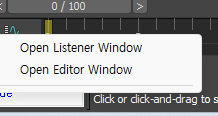
Right-click the small input box (mini listener) at the bottom left of 3ds Max,
then choose Open Editor Window.
If you only need the listener, choose Open Listener Window.
2. Paste the command
Paste the following as a single line into the editor.
fileIn (pathConfig.appendPath (pathConfig.appendPath (getDir #userScripts) "os_skinLayerStudio_connector") "SLS_Connect.ms"); slsConnect()
It should look like one line, as below.
The file is scripts\os_skinLayerStudio_connector\SLS_Connect.ms, not the scripts\ root.
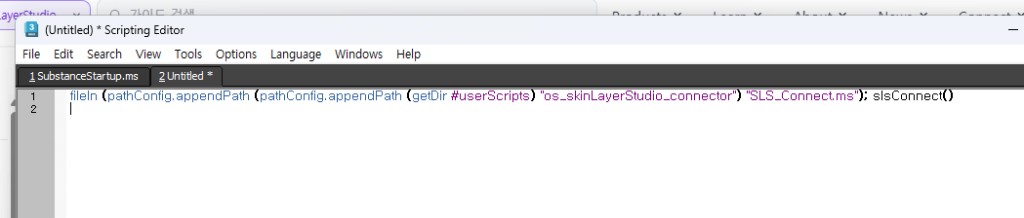
Then press Ctrl + E to run it.
(Or Tools → Evaluate All from the menu.)
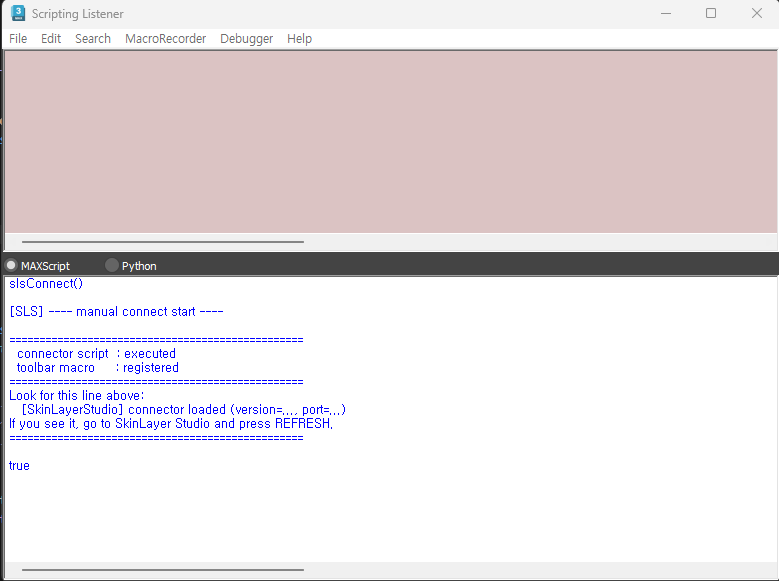
3. Confirm it worked
Success looks like this in the listener:
connector script : executedtoolbar macro : registeredtrueat the end
4. Click [Re] in SkinLayer Studio
After those listener lines appear, go back to SkinLayer Studio and click [Re].
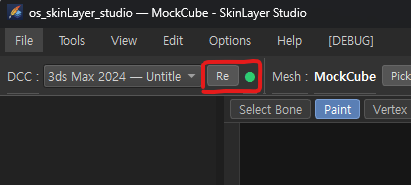
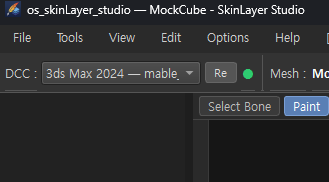
When connected, 3ds Max appears in the DCC list with a green indicator.
If it still does not connect
Please check:
- The command was pasted as one line (a line break or missing quote will fail)
- If you see
can't open file ...\scripts\SLS_Connect.ms, that is the old path. Use the one-liner above (package folder) - You ran it with Ctrl + E
- You ran it after 3ds Max was open
- You clicked [Re] in SkinLayer Studio
If it still fails, send a screenshot of the listener output and we will check it right away.
Notes
- This is a connect step, not an install. It only turns on the connector that is already installed.
- On some 3ds Max versions, the OS Tools menu may not appear.
We are aligning menu registration across versions. - After auto-connect is fixed, we will announce it in an update.
Sorry for the extra step.
We will ship the fix as soon as we can.
Thank you.
OtakuSolutions