F12 — Export / Import Weights (.json)
Download Markdown Download with ImagesSkinLayer Studio 1.3.x Standalone UI reference.
Practice: EP00–EP12 · Features: F01–F17 (order 50+).What is JSON for?
Transfer layer weights only. Backup, Import into another session, Max connector.
Mesh/skeleton package or Pick failure → FBX.Export SLS layer weights to a
.jsonfile, then
apply them to Skin in the 3ds Max connector, or Import them back into SLS.
What this does
| Description | |
|---|---|
| Does | Saves the mesh LayerStack weights (+ meta · bone/vertex info) as os_skinLayer_studio JSON |
| Uses | Backup · offline apply in Max · continue work in another PC/session of SLS |
| File examples | Body_Geo_weights.json, Dummy_Body_weights.json |
Separate from Apply to Skin (live DCC push) — this is a file-based exchange / restore path.
Menu locations
Tools  →  Export Weights (.json)
Tools  →  Export Weights to Folder...
Tools  →  Import Weights (.json)...
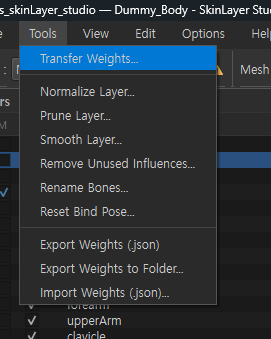
Export Weights (.json)
| Item | Description |
|---|---|
| Target | Current active mesh only |
| Action | Choose save path → write {meshName}_weights.json |
| Contents | Layer weights · mesh_name meta · bone/vertex info (when available) |
Cannot save if the active slot has no weights yet (before Pick).
Export Weights to Folder...
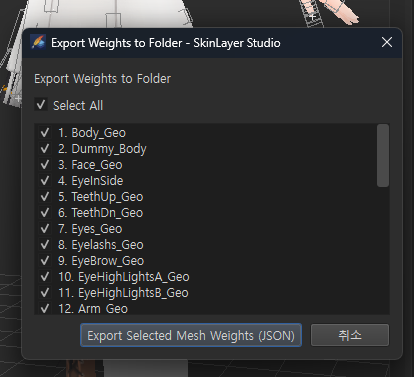
Use when exporting many meshes as JSON into one folder.
| UI | Description |
|---|---|
| Select All | Select/deselect all in the list |
| Check list | Meshes loaded in Skin Desk (Body_Geo, Dummy_Body, …) |
| Export Selected Mesh Weights (JSON) | Save {name}_weights.json for each checked mesh |
| Cancel | Close |
After you pick a folder, one file per mesh is created. (On name clash, suffixes like _weights_2.)
Reload in SLS (Import)
Tools → Import Weights (.json)...
- Load the receiving mesh into Skin Desk first (Pick)
- Import Weights → choose the JSON file
- Match Target mesh and apply
Use this path when restoring a backed-up JSON into SLS.
Load in the 3ds Max connector
In Max, open the SkinLayer Studio Connector window, then:
[Import Weights (*.json)]
- Add JSON files (multiple OK)
- Match to scene meshes by filename /
meta.mesh_name
e.g.Arm_Geo_weights.json→ sceneArm_Geo - Run Import → apply weights to Max Skin (offline JSON import)
Connector About also describes this as Offline JSON weight import utility for 3ds Max.
A same-name mesh must exist in the scene for matching.
Flow at a glance
[SLS] Paint · layer work
   │
   ├─ Tools → Export Weights (.json)          ← active 1
   └─ Tools → Export Weights to Folder...     ← multiple meshes
              ↓
         *.json files
              ↓
   ┌──────────┴──────────┐
   ▼                     ▼
[SLS] Import Weights    [3ds Max Connector]
  (.json)...             Import Weights (*.json)
  → edit again           → apply to Max Skin
Related docs
| Doc | Contents |
|---|---|
| Transfer Weights · Tools menu | Full Tools menu |
| UI layout guide | Menu bar · Apply to Skin |
| Import / Export FBX | FBX · Pick alternative |
| Practice EP02 Install | Connector install |
Images: export_json_tools_menu.png · export_json_to_folder.png
Written: 2026-07-26