Ep.2.1 — Cross DCC (Works in Blender·Maya·3ds Max)
Download Markdown Download with Images1. Why this note
A short note before the main series, to avoid a common misunderstanding.
Later videos demo 3ds Max ↔ SkinLayer Studio. Your DCC can still be Maya or Blender.
SkinLayer Studio is a Cross DCC tool. Maya · Blender use the same flow.
Workflow concept: EP02.
2. Connector · Pick — same on every DCC
The Connector lists 3ds Max · Maya · Blender. There is little difference between them.
The steps are the same:
- Select in the DCC
- Pick / Pick All in SLS
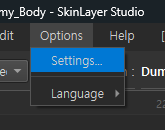
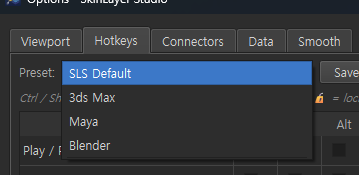
Hotkeys in Options → Settings also cover Maya · 3ds Max · Blender. Unreal · Unity might be added later; the core stays the same.
3. Language
The video uses a Korean UI. Switch English · 한국어 · 日本語 · 中文 under Options → Language.
Detail: F15 — Options · Settings
4. Install Connector
Pick the DCC and press Install. Versions show in the list.
After install:
| DCC | Where it appears |
|---|---|
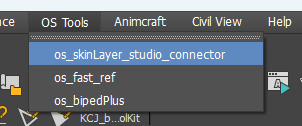
| 3ds Max | OS Tools → SkinLayer Studio Connector |
| Maya | OS Tools → the same Connector window |
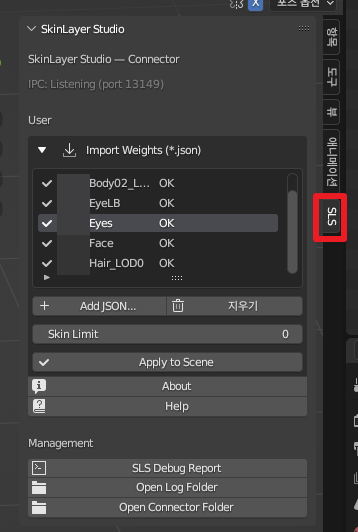
| Blender | SLS panel — almost the same menus |
That window is a support tool to keep the link smooth. Each DCC gets the tools it needs there.
Install steps: EP01. Window: F17
5. Blender axis — Bone Front Axis
Maya · 3ds Max usually point X forward. Blender points Y forward.
The video dropped a Mabel FBX into Blender quickly. Blender testing is still underway.
Select Blender and Pick All — it should look correct. Options has Bone Front Axis; for Blender that is Y. With that set, Blender works.
Axis options: F15
6. When TCP does not connect
The link is TCP. It works for most people. Sometimes it does not.
- Open the SkinLayer Studio Connector in the DCC — TCP starts when the window opens.
- Press Re in SLS — it should detect again.
If it still fails, open Help. Email · KakaoTalk · WeChat — we can remote in and get you connected.
File workaround (FBX · JSON): EP15
Contact: contact@otakusolutions.com
Recap
Later videos are 3ds Max demos, but the fundamentals are the same. Maya · Blender users can follow along.
Cross DCC (Max · Maya · Blender)
  → Pick a DCC in Connector · Pick
  → Language / hotkey presets
  → Install Connector (OS Tools · SLS panel)
  → Blender: Bone Front Axis = Y
  → No link: open Connector, Re · Help