FAQ.1 — Write permission error when installing the 3ds Max connector
Download Markdown Download with Images1. What happened?
When installing the 3ds Max connector from SkinLayer Studio, you may see a write-permission error, or the app may look frozen (“Not Responding”).
The connector is installed into Max’s user scripts folder (not Program Files). If Windows blocks writing to that folder, Install may fail.
App message example:
This folder has no write permission. Please grant write access.
For details, see this guide.
2. Target folder
%LOCALAPPDATA%\Autodesk\3dsMax\<VERSION> - 64bit\<LANG>\scripts\startup
Examples:
C:\Users\<YourName>\AppData\Local\Autodesk\3dsMax\2025 - 64bit\CHS\scripts\startup
C:\Users\<YourName>\AppData\Local\Autodesk\3dsMax\2024 - 64bit\ENU\scripts\startup
<VERSION>— e.g.2024,2025<LANG>— language pack folder, e.g.CHS(Chinese),ENU(English),KOR,JPN…
Tip: Press Win + R, paste the line below, press Enter — File Explorer opens Local AppData. Then go to Autodesk\3dsMax\....
%LOCALAPPDATA%\Autodesk\3dsMax
3. How to grant write permission (Windows)
Exact clicks can vary slightly by Windows version. Corporate PCs may need IT help.
- Close 3ds Max completely (check Task Manager if needed).
- Open File Explorer and go to the
scripts\startupfolder above.
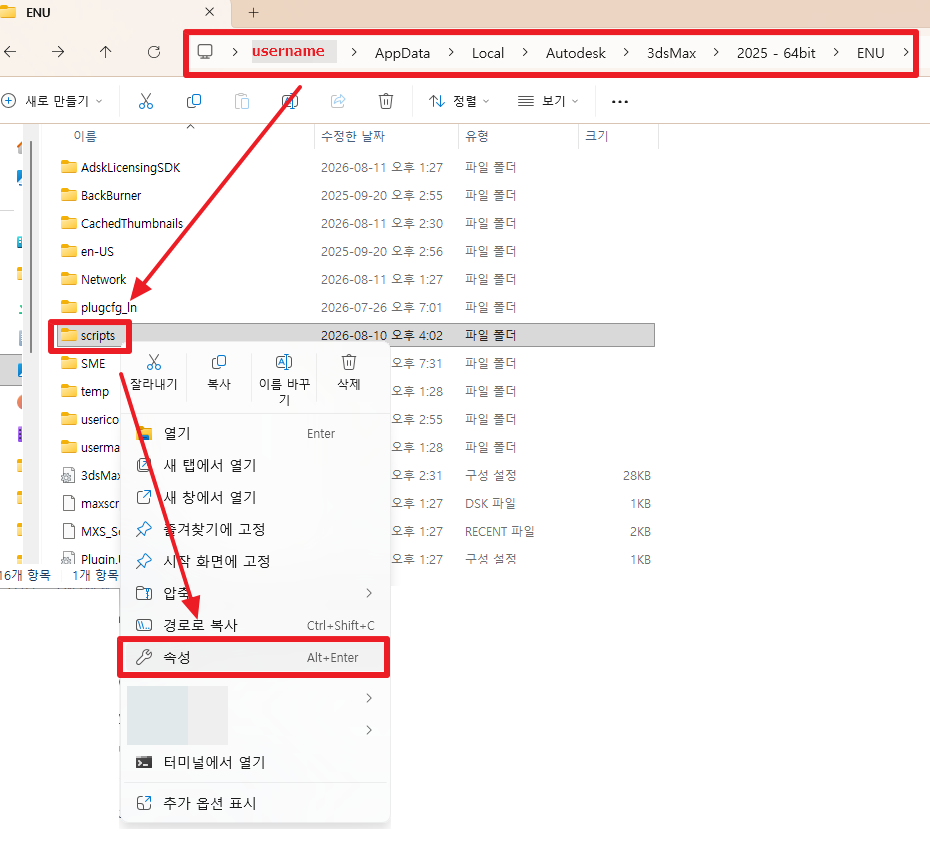
Ifstartupdoes not exist, openscriptsinstead. - Right-click the
startupfolder (orscriptsifstartupis missing) → Properties.
As in the screenshot, right-click scripts in Explorer and choose Properties.
- Open the Security tab.
- In the list, select your Windows user account (username).
(NotSYSTEM— select your own name.) - If Write is not allowed, click Edit….
In the screenshot below, the red boxes are what to check; the orange box is Edit when you need to change permissions.
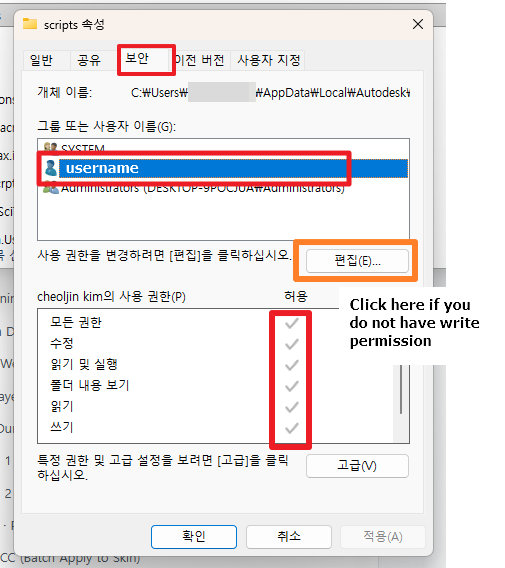
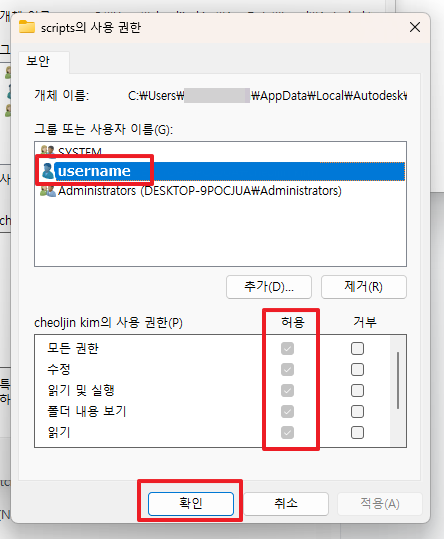
- Check Modify and Write under Allow (or “Full control” if your IT allows it) → Apply → OK.
If Windows asks to apply to subfolders, accept.
Confirm the Allow column is checked, then click OK.
- If the folder is marked Read-only on the General tab, clear the Read-only check → Apply.
- Return to SkinLayer Studio → Options → Connectors → Install 3ds Max again.
- Restart 3ds Max, then Connect.
4. Important
| Do | Don’t |
|---|---|
| Fix write permission on the folder above | Expect Run as administrator on SkinLayer Studio to fix this — it usually does not |
| Close Max before installing | Install while Max is locking files in that folder |
5. Still failing?
- Try the same steps for every language folder you use (
CHS,ENU, …). - Ask IT whether Controlled Folder Access / antivirus is blocking AppData writes.
- Copy the full folder path from the SkinLayer Studio error dialog and send it to support.