F16 — Texture Manager
Download Markdown Download with ImagesSkinLayer Studio 1.3.x Standalone UI reference.
Practice: EP00–EP12 · Features: F01–F17 (order 50+).Review texture paths used in the current session in one place, and
replace paths · rescan status · Collect textures into the project folder.
Use with viewport Textured display. → Viewport menu bar
Open from the menu
Edit → Texture Manager…
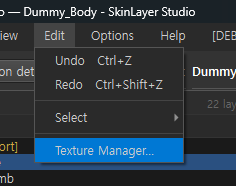
The same Edit menu also has Undo / Redo / Select.
Dialog at a glance
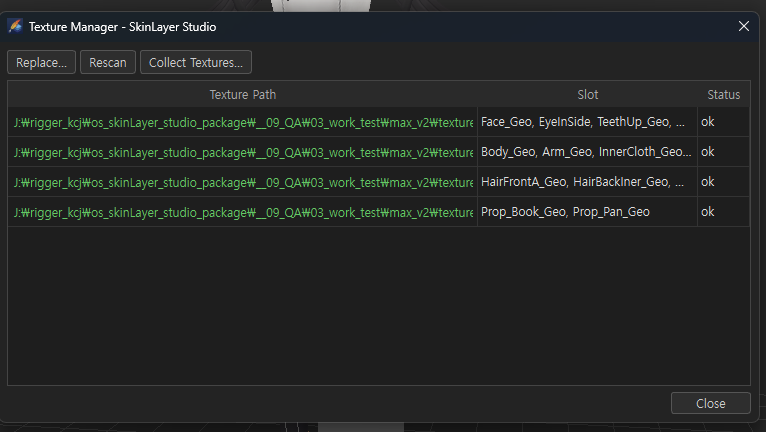
| Section | Description |
|---|---|
| Replace… | Replace the selected row’s texture with a new file (batch for slots sharing the path) |
| Rescan | Recheck path existence on disk → refresh Status |
| Collect Textures… | Copy used textures next to .sls under texture/ and rebind relative paths |
| Table | Texture Path · Slot · Status |
| Close | Close |
Table columns
| Column | Description |
|---|---|
| Texture Path | Full texture path (diffuse, etc.; green often means OK). Double-click copies the path |
| Slot | Mesh slots using that path — same path merged into one row (Face_Geo, EyeInSide, …) |
| Status | ok = file exists · broken paths show as missing, etc. |
Right-click: show in Explorer / copy path, etc.
Replace…
- Select a row in the table
- Replace… → choose a new image file
- All slots that used that path update to the new path
For batch reconnect when folders/drives change (broken paths).
Rescan
Re-reads file existence from disk and refreshes Status.
Use after moving files or after Replace to verify state.
Collect Textures…
Use when handing off a project or cleaning up paths.
| Action | Description |
|---|---|
| Target | Texture files used in the current session |
| Copy location | texture/ next to the .sls file |
| Rebind | Reconnect as relative paths |
| Originals | Not deleted (copies created) |
| Caution | Existing absolute-path links are broken |
Save the project first (.sls location is required to create texture/).
File → Save / Save As…  (.sls)
→ Edit → Texture Manager… → Collect Textures… → Yes
→ reflected in .sls on the next save
When to use
| Situation | What to do |
|---|---|
| Textured but textures missing | Texture Manager → check Status → Replace / Rescan |
| Project folder · drive move | Replace or Collect Textures |
| Delivery · backup package | Collect Textures then keep .sls + texture/ together |
Related docs
| Doc | Contents |
|---|---|
| Viewport menu bar | Textured shading |
| FBX Import/Export | Mesh file exchange |
| Options — Data | User data folder (settings · logs) |
Images: texture_manager_menu.png · texture_manager_dialog.png
Written: 2026-07-26